How to Geotag Photos on Android, Whatever the Brand
How to geotag photos on Android starts with a setting whose name changes depending on who made your phone. Samsung calls it Location tags. Google calls it Save location. OnePlus calls it Store location data. Turn the right one on and new photos carry coordinates from the moment you press the shutter. Photos you have already taken need the location written in afterwards, because nothing on the phone can recover a coordinate the camera never recorded.
The setting has a different name on every Android phone
This is the reason most guides fail you. They tell you to look for "Location tags" and you own a Pixel, which has no such thing. Google publishes the per-manufacturer list on its own help page, and it is short enough to reproduce.
| Phone | What to look for in camera settings |
|---|---|
| Google Pixel | Save location |
| Samsung Galaxy | Location tags |
| Motorola | Save location |
| OnePlus | Store location data |
| Xiaomi | Save location info |
All five live in the camera app's own settings rather than in the phone's main Settings app, which is the second thing that trips people up. On a Pixel, Google's camera help puts Save location under Settings, then More settings. On a Galaxy, Samsung's instructions are to open the Camera app, tap the gear icon inside it, and toggle Location tags on. Samsung adds a prerequisite worth checking first: location has to be enabled for the phone as a whole, under Settings, then Location.
The full list of labels is on Google's camera location settings page if your make is not above.
Why the toggle is on and photos still have no location
A camera app can only record a coordinate the system agrees to give it, so the toggle is the last of three gates rather than the only one. The phone's location has to be on, the camera app needs permission, and the in-camera setting has to be enabled.
The permission is the one people miss. Touch and hold the camera app's icon, tap App info, then Permissions, then Location. Android's permissions documentation gives four choices: Allow all the time, Allow only while using the app, Ask every time or allow when I share, and Don't allow.
Pick "Allow only while using the app". The one to avoid is "Ask every time or allow when I share", which does what it says and prompts on each launch. Dismiss that prompt once while you are busy shooting and the photos from that session have no coordinates in them, with nothing on screen to tell you so.
What Google Photos will and will not change
Google Photos looks like the obvious place to fix a photo that missed its location, and for one specific job it is. Its limits are documented and they are stricter than most articles admit.
Google's own help page states the rule in three parts. You have to back the photo up first. Then, "You can only change or remove estimated locations and locations that you manually added to your photos." And the part that decides whether this route is any use to you: "If a location was automatically added by your camera, you can't update or remove the location in Google Photos."
So a wrong coordinate written by your camera cannot be corrected there. Not by you, not ever, inside that app.
There is a second limit that matters more for anyone publishing the photo. Google's page notes that when the image goes anywhere outside Google Photos, by email for instance, "the original location your device saved shows without any edits you made in Google Photos." The edit lives in the library, not in the file. Upload that photo to your own website and whatever you corrected is simply not there.
How to geotag photos on Android after they are taken
For a photo that already exists, the reliable move is to change the file rather than a gallery's record of it. You can write the coordinates into the file in a browser, on the phone or on a desktop.
- Copy the photos off the phone, or open the editor on the phone itself.
- Drop the JPEG, PNG or WebP files onto the upload panel.
- Search for the place by name instead of dragging the pin by eye.
- Check the coordinate pair shown under the map before moving on.
- Add a description and keywords if you want those stored too.
- Download the edited copies and publish those, not the originals.
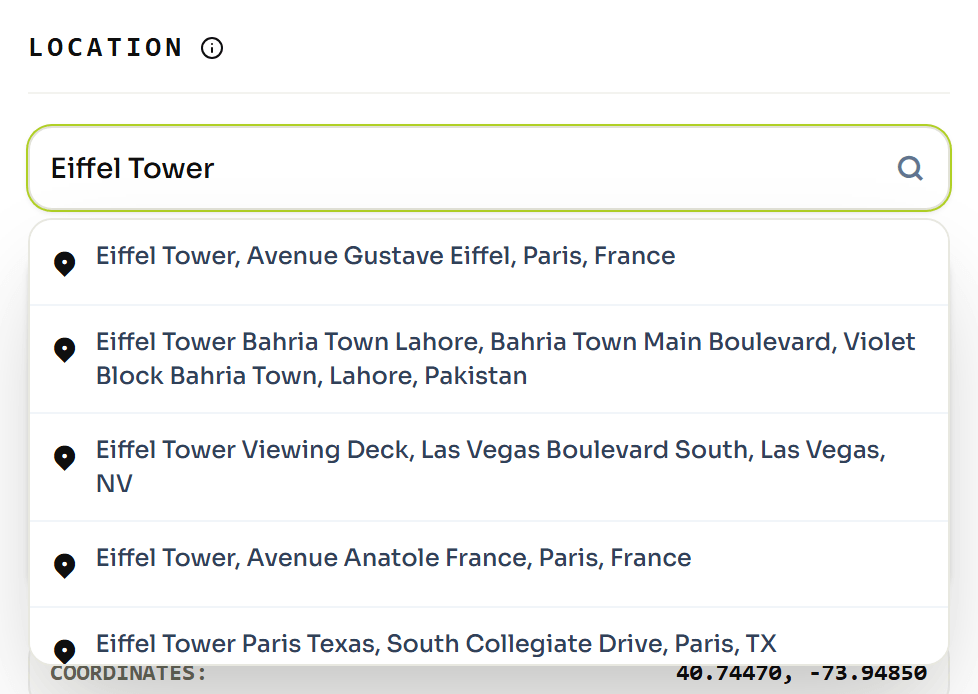
Check the location is in the file, not only in the app
Your gallery app is not a reliable witness here, as the Google Photos case shows. Read the file.
EXIF does not store a coordinate the way your maps app displays it. A latitude of 40.7447 is not kept as that decimal. It is split into degrees, minutes and seconds and stored as a positive number, 40 degrees, 44 minutes and 40.92 seconds, with the hemisphere held separately in a one-letter tag called GPSLatitudeRef containing N or S. Longitude works the same way, with GPSLongitudeRef holding E or W.
Both halves have to survive. A file with the right degrees and a missing hemisphere letter reads as valid and places the photo in the mirror-image hemisphere, which is how a photo taken in Cape Town ends up somewhere in the Mediterranean.
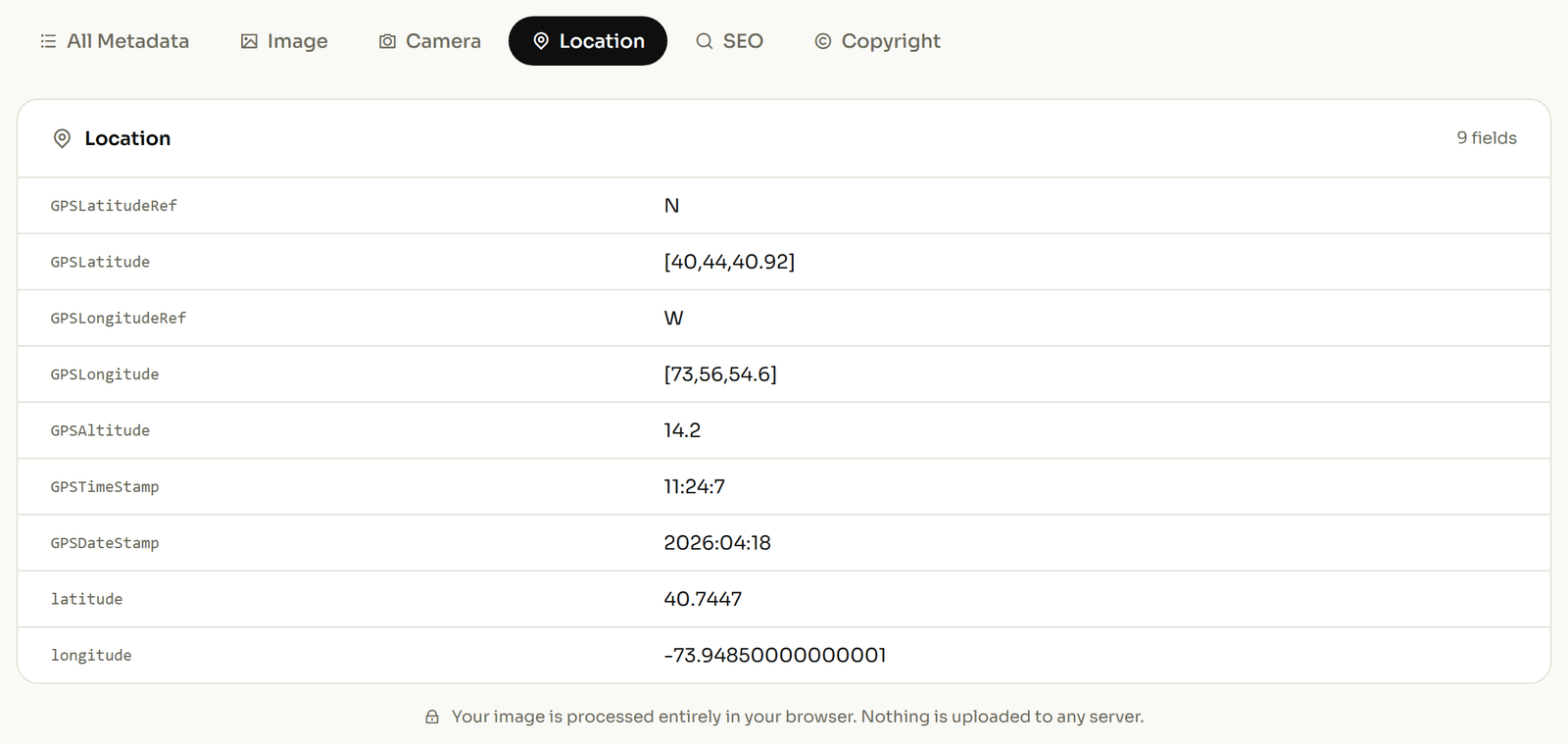
To check your own, open the photo and read its location block. An empty GPS section means the coordinate is not in the photo, whatever your gallery displays next to it.
If you want the version that is not tied to Android, there is the general four-step version, and you can also pull the GPS values out of a photo you already have. If you also shoot on Apple hardware, an iPhone has a different problem entirely, and it is a file format problem rather than a settings one.