Samsung Phone Not Charging? Try These Quick Fixes

Why Your Samsung Phone Won't Charge
When your Samsung Galaxy phone stops charging, your first instinct might be to assume the battery is dead or the phone is broken. When samsung charging not working becomes an issue, the cause is usually something you can fix yourself. In reality, charging problems are among the most common issues Samsung owners face, and the vast majority are caused by simple, fixable problems. A dirty charging port, a worn-out cable, a software glitch, or a moisture detection warning can all prevent your phone from taking a charge.

This guide covers every known fix for Samsung charging issues, organized from the quickest solutions to the most involved. Whether your phone won't charge at all, charges intermittently, charges slowly, or shows a moisture warning, you'll find the right fix here. These steps work across all recent Samsung Galaxy models including the Galaxy S24, S25, S26, A-series, Z Fold, and Z Flip devices.
Check Your Charging Cable and Adapter
A faulty charging cable or adapter is the single most common reason a Samsung phone won't charge. Cables degrade over time, especially at the connector ends where repeated bending weakens the internal wires. Before blaming your phone, systematically test your charging accessories.
Swap the Cable
Try a different USB-C cable. If you have another Samsung cable, use that first. If not, any USB-C cable rated for charging will work, though for the fastest speeds you'll want a cable that supports USB Power Delivery. If the phone charges with a different cable, your original cable is damaged and needs to be replaced.
Swap the Adapter
If changing the cable doesn't help, try a different wall adapter. Samsung's 25W and 45W adapters are sold separately and any USB-C Power Delivery adapter from a reputable brand will work. You can also test by plugging your cable into a computer's USB port or a portable power bank. If the phone charges from a different adapter, your original adapter is the problem.
Try a Different Outlet
Wall outlets can fail silently, especially in older buildings. Plug your charger into a different outlet, ideally in a different room. If you're using a power strip or extension cord, try plugging directly into the wall instead, as power strips can introduce voltage drops.
Clean the Charging Port
The USB-C charging port on your Samsung phone is a magnet for lint, dust, and debris. Over time, pocket lint accumulates inside the port and prevents the charging cable from making a solid electrical connection. This is one of the most underdiagnosed causes of charging problems.

- Turn off your phone completely before cleaning the port.
- Use a flashlight to look inside the charging port. If you see any lint, dust, or debris, it needs to be removed.
- Use a wooden or plastic toothpick to gently dislodge debris from the port. Do not use metal objects like pins or needles, as they can damage the electrical contacts inside the port.
- You can also use compressed air held at an angle to blow debris out of the port. Don't spray directly into the port at full pressure.
- After cleaning, try plugging in your charging cable. You should feel and hear a firm click when the connector seats fully.
If the charging cable feels loose in the port even after cleaning, the port's internal clip mechanism may be worn. This is a hardware issue that requires a port replacement at a service center.
Restart Your Samsung Phone
A software glitch can prevent your Samsung phone from recognizing the charging connection. A restart clears the phone's running state and often resolves charging issues that appeared suddenly without any hardware change.
- Press and hold the Side button and Volume Down button together for three seconds.
- Tap Restart.
- After the phone reboots, plug in the charger and check whether charging begins.
If your phone's battery is completely dead and the screen won't turn on, plug it in and wait at least 15 to 30 minutes. Samsung phones with a fully depleted battery may take several minutes before showing any sign of charging. If you see a battery icon with a lightning bolt after waiting, the phone is charging and just needed time to reach a minimum charge level before the screen could activate.
Remove Your Phone Case
Some phone cases, particularly thick rugged cases or cases with built-in battery packs, can prevent the USB-C connector from fully inserting into the charging port. Even a millimeter of gap can prevent the charging contacts from connecting.
Remove your case entirely and try plugging in the charging cable directly. If the phone starts charging without the case, the case is either too thick around the port cutout or has shifted slightly out of alignment. Some third-party cases are designed with narrow port openings that don't accommodate all USB-C cable connector sizes.
Dismiss the Moisture Warning
Samsung Galaxy phones have moisture detection sensors in the USB-C port that trigger a warning when liquid is detected. This safety feature prevents electrical shorts and corrosion, but it can sometimes trigger falsely, especially in humid environments or after the phone has been in a steamy bathroom.
If the Port Is Actually Wet
- Unplug the charging cable immediately.
- Shake the phone gently with the port facing down to remove excess water.
- Leave the phone in a well-ventilated area for at least one to two hours. Do not use a hair dryer or put the phone in rice, as these can cause additional damage.
- After the port has dried, try charging again. The warning should clear on its own once no moisture is detected.
If the Warning Is a False Alarm
False moisture warnings can occur after a software update, in very humid conditions, or when the port has minor debris. Try these steps:
- Turn off your phone and turn it back on.
- Gently clean the port with a dry toothpick to remove any debris or residue.
- Blow gently into the port or use compressed air.
- If the warning persists, you can bypass it temporarily by using a wireless charger instead of the USB-C cable.
Try Wireless Charging
If your Samsung phone supports wireless charging (most Galaxy S, Note, Z Fold, and Z Flip models do), try placing it on a Qi-compatible wireless charger. If the phone charges wirelessly but not through the USB-C port, the problem is isolated to the port or cable, not the phone's battery or charging circuitry.
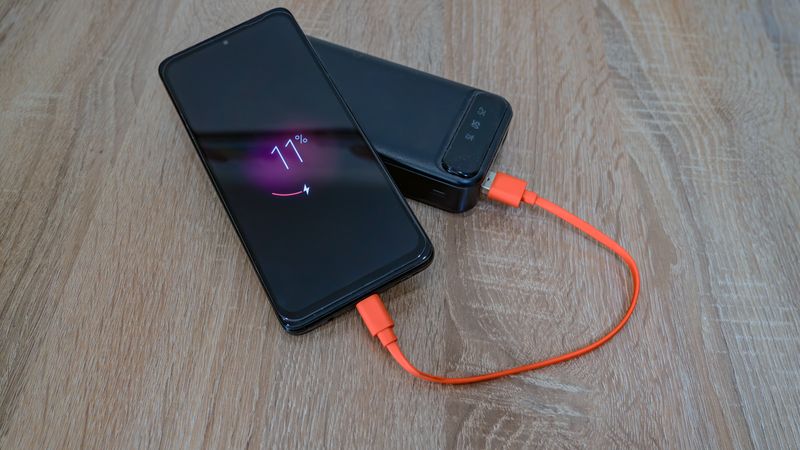
Make sure to remove any thick cases or magnetic accessories before placing the phone on the wireless charger, as these can prevent the charging coils from aligning properly.
Check Battery and Charging Settings
Samsung includes several battery management features that can affect charging behavior. While these settings won't completely prevent charging, they can cause your phone to charge more slowly or stop at a lower percentage than expected.
Disable Protect Battery
The Protect Battery feature limits charging to 85% to preserve long-term battery health. If your phone seems to stop charging before reaching 100%, this setting is the likely reason.
- Go to Settings > Battery (or Battery and device care > Battery).
- Tap More battery settings.
- Toggle off Protect battery if you want to charge to 100%.
Disable Power Saving Mode
While Power Saving Mode doesn't block charging, it can limit charging speed on some models. If your phone is charging unusually slowly, try disabling Power Saving Mode during charging.
Check for Adaptive Charging
Some Samsung models have an Adaptive charging feature that slows charging overnight to preserve battery health. This is normal behavior and not a malfunction. The phone learns your charging pattern and accelerates charging toward the end of the cycle so it reaches 100% around the time you usually unplug it.
Boot into Safe Mode
A third-party app can interfere with the charging process, particularly apps that claim to optimize battery life, manage charging speed, or control when charging starts and stops. Safe Mode disables all third-party apps so you can test whether an app is causing the issue.

- Press and hold the Side button and Volume Down button until the power menu appears.
- Tap and hold Power off until the Safe mode prompt appears.
- Tap Safe mode.
- Once the phone restarts in Safe Mode, plug in the charger and check whether the phone charges normally.
If charging works in Safe Mode, uninstall recently downloaded apps one at a time to find the culprit. Battery management apps, charging animation apps, and task killer apps are the most common offenders. Restart your phone normally to exit Safe Mode.
Check for Software Updates
Samsung occasionally releases updates that fix charging-related bugs, including false moisture warnings, slow charging, and charging interruptions.
- Go to Settings > Software update.
- Tap Download and install.
- Install any available updates and restart your phone.
Wipe the Cache Partition
Clearing the system cache removes temporary files that may be interfering with the charging process. This doesn't delete your personal data, apps, or settings.
- Turn off your phone completely.
- Press and hold the Volume Up button and Side button simultaneously until the Samsung logo appears.
- In the Recovery menu, use the Volume buttons to navigate to Wipe cache partition and press the Side button to select it.
- Select Yes and wait for the process to complete.
- Select Reboot system now.
Factory Reset as a Last Resort
If every software fix has failed, a factory reset eliminates any software-related cause. Back up your data first, as this erases everything on your phone.
- Go to Settings > General management > Reset.
- Tap Factory data reset.
- Tap Reset and enter your PIN.
- Tap Delete all.
If the phone still won't charge after a factory reset with a known-good cable and adapter, the issue is hardware-related. The USB-C port, charging IC chip, or battery itself may need replacement.
For Roku troubleshooting, see our roku remote not working guide.
For related Bluetooth issues, see our guide on samsung bluetooth not working.
If you're also having network problems, check our samsung wifi not working troubleshooting guide.
When to Get Professional Repair
Some charging problems can only be fixed by a technician. Consider professional repair if:
- The USB-C port is visibly damaged, bent, or has broken pins.
- The phone gets unusually hot while charging.
- The battery has swollen (the back of the phone is bulging).
- The phone was dropped in water and won't charge even after drying.
- Wireless charging doesn't work either, suggesting a battery or mainboard issue.
Samsung offers warranty repairs for phones under one year, and Samsung Care+ extends coverage. Visit our troubleshooting blog for more Samsung and tech repair guides, or find a Samsung authorized service center near you through Samsung's website.
If these steps don't resolve your issue, visit Samsung Support for additional troubleshooting resources and guides.
Frequently Asked Questions About Samsung Charging Not Working
Why is my Samsung phone charging so slowly?
Slow charging is usually caused by using a cable or adapter that doesn't support fast charging, having Protect Battery or Power Saving Mode enabled, charging while using intensive apps, or a dirty charging port. Use Samsung's official 25W or 45W adapter with a compatible cable for the fastest charging speeds. Also check that the cable supports USB Power Delivery.
Can I use a non-Samsung charger for my Galaxy phone?
Yes, any USB-C charger that supports USB Power Delivery will work safely with Samsung Galaxy phones. Samsung's super fast charging (25W and 45W) requires a compatible adapter, but standard charging works with any USB-C adapter. Avoid no-name chargers from unverified sellers, as they may not have proper safety certifications.
What does the moisture detected warning mean?
The moisture detected warning means Samsung's built-in sensors have detected liquid in or near the USB-C port. This safety feature prevents charging to avoid electrical shorts and corrosion. Let the port dry completely before attempting to charge via USB-C. You can use wireless charging in the meantime if your phone supports it.
Why does my Samsung phone only charge when turned off?
If your phone charges when off but not when on, a software issue is likely the cause. This could be a third-party app interfering with the charging process, a software bug, or excessive background activity consuming power faster than the charger can deliver it. Try Safe Mode, uninstalling recent apps, and if necessary, a factory reset.
How do I know if my Samsung battery needs to be replaced?
Samsung phones include a battery health check in the Samsung Members app. Open Samsung Members, tap Get help, then Phone diagnostics, and run the Battery test. If the battery health is below 80%, it may be time for a replacement. Other signs include rapid battery drain, the phone shutting down at 20% or higher, and the battery taking much longer to charge than it used to. Visit the GeoTagImg photo editor to add GPS data to your repair documentation photos for warranty claims and service records.



