Quick Fixes for an AirPods Microphone That Won't Work

An AirPods microphone not working is one of the most common complaints Apple earbud owners run into. Most of the time, it comes down to a software glitch, dirty mic openings, or a setting that got changed without you realizing it. Before you start worrying about a hardware replacement, walk through these quick fixes. Nine times out of ten, one of them will get your mic back to normal.
Why Is Your AirPods Microphone Not Working?
There are a handful of common reasons why your AirPods mic might stop picking up your voice. Knowing the cause helps you pick the right fix faster.
Dirty microphone grilles. Pocket lint, earwax, and dust build up over the tiny mesh openings. Even a thin layer of gunk can block sound from reaching the mic.
Software bugs. A Bluetooth hiccup between your iPhone and AirPods can cause the mic to drop out mid-call. iOS updates sometimes introduce new audio routing quirks, too.
Wrong mic settings. If your AirPods are set to use only the left or right mic, and that specific earbud has an issue, calls will sound silent on the other end.
Low battery. When your AirPods are running on fumes, the microphone is one of the first things to underperform. A weak charge can make your voice sound distant or cut out entirely.
Water exposure. AirPods are water-resistant, but they are not waterproof. A heavy rain, a sweaty workout, or an accidental splash can cause temporary (or permanent) mic problems.
Check Your Microphone Settings First
Before you start cleaning or resetting anything, check the settings on your iPhone. A quick toggle in the right place might be all you need.
Switch the Mic to Automatic
Your AirPods have a setting that controls which earbud handles mic duties. If it is locked to one side, and that side has an issue, the other person on the call hears nothing.
Open Settings on your iPhone. Tap Bluetooth, then tap the small (i) icon next to your AirPods. Scroll down and tap Microphone. Select Automatically Switch AirPods.
This lets your iPhone pick whichever earbud has the better connection at any given moment. It is the default setting, but it can get changed accidentally.
Make Sure the Right Audio Input Is Selected
Sometimes your iPhone routes the mic input to the phone's built-in microphone instead of your AirPods. You will notice this when you can hear through the AirPods but the other person says you sound far away.
During a call, tap the audio icon (it looks like a speaker) and make sure your AirPods are selected as the input device. On a Mac, check System Settings > Sound > Input and pick your AirPods from the list.
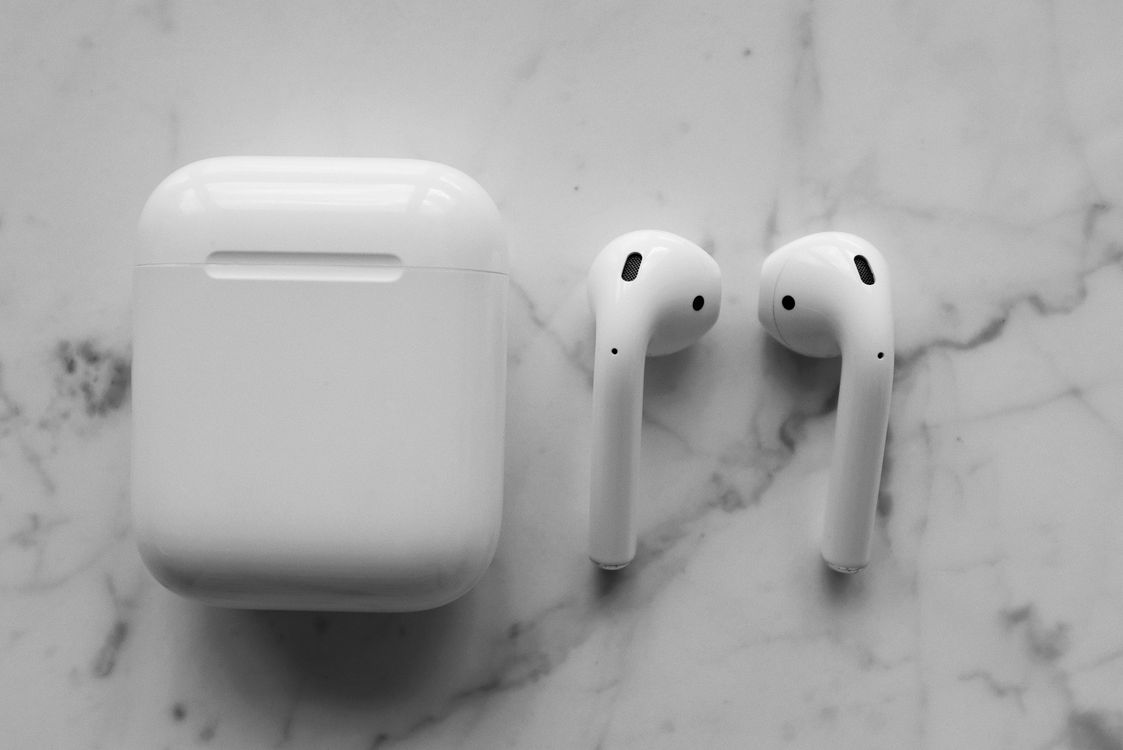
Photo by ready made on Pexels
Clean the Microphone Openings
This is the fix that people skip most often, and it works more than you would expect. The microphone on each AirPod sits behind a tiny mesh grille at the bottom of the stem. Lint, dust, and earwax collect there over weeks of daily use.
Grab a dry, soft-bristled brush (a clean toothbrush works great) and gently brush across the mic openings. Follow up with a dry, lint-free cloth to wipe away anything you loosened.
Do not use water, rubbing alcohol, or compressed air directly on the grilles. Liquids can seep through the mesh and damage the mic component inside. Sharp objects like toothpicks or pins can puncture the mesh entirely.
After cleaning, make a test call. You might be surprised at the difference a quick brush makes.

Photo by Dina Nasyrova on Pexels
Reconnect Your AirPods
Bluetooth connections can develop small glitches over time. Removing the pairing and starting fresh clears out corrupted connection data that might be causing the mic to fail.
Forget and Re-Pair
Go to Settings > Bluetooth on your iPhone. Tap the (i) next to your AirPods and select Forget This Device. Confirm when prompted.
Now put both AirPods back in the charging case and close the lid. Wait about 30 seconds, then open the lid near your iPhone. A setup animation should pop up on your screen. Tap Connect and follow the prompts to pair them again.
This process takes less than a minute and fixes a surprising number of mic issues caused by corrupted Bluetooth profiles.
Reset Your AirPods to Factory Settings
If forgetting and re-pairing did not help, try a full factory reset. Place both AirPods in the case and close the lid. Wait 30 seconds.
Open the lid, but do not take the AirPods out. Press and hold the setup button on the back of the case for about 15 seconds. The status light will flash amber first, then turn white. That white flash means the reset is complete.
Pair them to your iPhone again the same way you did when they were brand new. This wipes all saved settings and connection data, giving you a completely clean start.
Update Your iPhone and AirPods Firmware
Outdated software is a common culprit behind audio issues. Apple regularly pushes updates that fix Bluetooth bugs and improve how the mic handles calls.
To update your iPhone, go to Settings > General > Software Update. Download and install any available update.
AirPods firmware updates work differently. There is no manual button to press. Your AirPods update automatically when they are in the charging case, the case is plugged in or on a charger, and your iPhone is nearby and connected to Wi-Fi.
To check your current firmware version, go to Settings > Bluetooth, tap the (i) next to your AirPods, and scroll down to Firmware Version. You can compare that number against the latest version listed on Apple's support site to see if you are up to date.
Try Your AirPods on Another Device
This step helps you figure out whether the problem is with your AirPods or with your iPhone. Pair your AirPods to a different phone, tablet, or Mac and make a test call.
If the mic works fine on the other device, the issue is likely a software or settings problem on your iPhone. Go back to the re-pairing and update steps above.
If the mic still fails on a second device, the problem is almost certainly hardware-related. An AirPods microphone not working on multiple devices means the microphone component itself is damaged, and no software fix will help.

Photo by Darina Belonogova on Pexels
When to Contact Apple Support
If you have tried every fix on this list and the mic still is not working, it is time to reach out to Apple. Here are a few signs that point to a hardware problem:
The mic fails on every device you try, not just your iPhone
You can see visible damage to the microphone grille or the stem of the AirPod
The AirPods were recently exposed to a lot of water or dropped on a hard surface
Only one AirPod mic works, and cleaning and resetting did not change anything
If your AirPods are still under warranty or covered by AppleCare+, Apple may replace the faulty earbud at no extra cost. You can book an appointment at an Apple Store or start a support request online through Apple's website.
For AirPods that are out of warranty, Apple offers a paid replacement for individual earbuds. It is cheaper than buying a whole new set.
If you are having trouble with just one side, read our guide on fixing a left AirPod that is not working. You can also browse more troubleshooting articles on our blog.
Frequently Asked Questions
Why does my AirPods mic sound muffled on calls?
A muffled mic almost always means the microphone grille is partially blocked by dirt, lint, or earwax. Clean the mesh openings at the bottom of the stem with a dry, soft brush. If cleaning does not fix it, try resetting the AirPods and re-pairing them to clear any Bluetooth glitches.
Can I use just one AirPod for calls?
Yes. Each AirPod has its own built-in microphone. You can take a call with only one earbud in your ear, and the mic on that earbud will handle your voice. Just make sure your mic setting is on "Automatically Switch AirPods" so your iPhone uses whichever one you are wearing.
Do AirPods microphones wear out over time?
The microphone hardware itself is built to last, but the mesh grille that protects it can degrade with heavy use. Sweat, moisture, and repeated cleaning with harsh materials can wear down the mesh. Taking care of your AirPods and storing them in the case when not in use helps extend their lifespan significantly.
Why does my AirPods mic work for music but not calls?
Music playback does not use the microphone at all. It only uses the speakers. So if your mic fails on calls but music sounds fine, the speaker hardware is working correctly. The issue is specifically with the mic input. Check your mic settings, clean the grilles, and try re-pairing. If none of that works, the mic component may need replacement.