Right AirPod Not Working? Here Is How to Fix It

A right AirPod that plays no sound, cuts out intermittently, or refuses to connect while the left one works perfectly is one of the most common AirPods issues. The cause is almost always a dirty speaker mesh, a drained battery in that specific AirPod, or a Bluetooth pairing glitch rather than a hardware defect. Because each AirPod maintains its own independent Bluetooth connection to the iPhone, one can fail while the other continues working normally.

Photo by cottonbro studio on Pexels
Why Only the Right AirPod Stops Working
Earwax and debris are blocking the speaker mesh. The speaker mesh on each AirPod is extremely fine and collects earwax, skin oils, and dust over time. Since most people have a dominant ear they insert first and wear longer, one AirPod typically accumulates more buildup than the other. When the mesh becomes clogged, sound output drops significantly or disappears entirely. The AirPod still shows as connected in Bluetooth settings even when the speaker is completely blocked.
The right AirPod's battery is drained or not charging. Each AirPod has its own tiny battery that charges independently through its contact point in the case. If the right AirPod's charging contact is dirty, misaligned, or obstructed by debris inside the case, it may not charge fully. When you put both AirPods in and start playing audio, the right one dies first because it started with less charge. You can verify this by checking the battery widget on your iPhone, which shows the charge level for each AirPod individually.
A Bluetooth connection glitch is affecting one AirPod. Each AirPod connects separately to your device. A pairing glitch can cause one AirPod to drop its connection or fail to route audio even while the other stays connected. This happens more often after switching between multiple Apple devices (iPhone, iPad, Mac) because the automatic switching feature occasionally leaves one AirPod connected to a different device than the other.
The audio balance is shifted to the left. iOS has an accessibility setting that lets you shift the audio balance entirely to one side. If this slider was accidentally moved, one AirPod may appear silent even though it is working correctly, because all audio is being routed to the opposite side.
The right AirPod has been set as the microphone-only unit. In AirPods settings, you can assign the microphone to always use one specific AirPod. This does not stop audio playback, but if combined with other settings or a glitch, it can cause unexpected behavior where one AirPod seems less responsive than the other.
Check the Battery Level of Each AirPod
Open the AirPods case near your iPhone with both AirPods inside. A popup card shows the charge level for the left AirPod, the right AirPod, and the case separately. If the right AirPod shows 0% or a significantly lower charge than the left, the issue is a charging problem, not an audio problem.
You can also check in Settings > Bluetooth > tap the (i) next to your AirPods name to see individual battery levels. The battery widget on the home screen or Today View also shows per-AirPod charge levels when the case is open.
If the right AirPod is not charging, clean the charging contacts on both the AirPod stem and inside the case (see the cleaning section below).
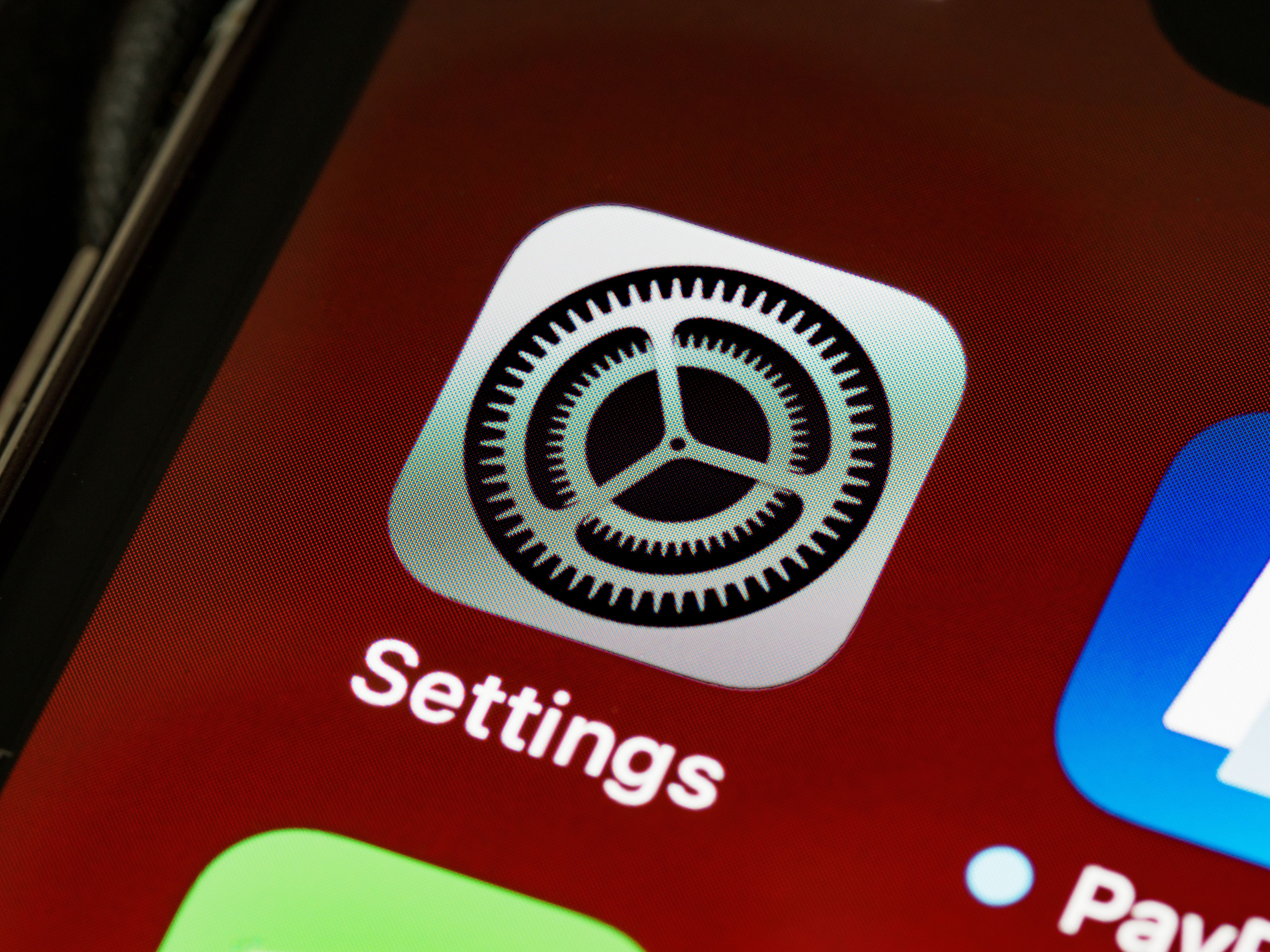
Photo by Karolina Kaboompics on Pexels
Clean the Right AirPod and Its Charging Contact
Cleaning is the fix in the majority of cases where one AirPod sounds quieter or plays no sound at all.
- Hold the right AirPod with the speaker mesh facing downward so gravity helps pull debris away from the mesh rather than pushing it further in.
- Use a dry, soft-bristled brush (a clean toothbrush works well) to gently sweep across the speaker mesh. Use short strokes and brush away from the mesh opening.
- For stubborn earwax buildup, use a clean, dry wooden toothpick to carefully dislodge visible chunks from the mesh. Do not push debris into the mesh. Do not use water, alcohol, or any liquid on the speaker mesh.
- Clean the charging contact at the bottom of the AirPod stem with a dry lint-free cloth. This is the small metal circle that makes contact with the charging pin inside the case.
- Clean the corresponding charging pin inside the case. Use a dry cotton swab to gently wipe the metal contact point where the right AirPod sits.
After cleaning, place the right AirPod back in the case, close the lid, and wait 30 seconds. Then remove both AirPods, put them in your ears, and test audio playback. If the right AirPod was blocked by earwax, cleaning typically restores full volume immediately.
Check the Audio Balance Setting
Go to Settings > Accessibility > Audio/Visual. Look for the Balance slider. It should be centered between L and R. If the slider is pushed toward the left, drag it back to the center. This slider controls how audio is distributed between the left and right channels across all audio output, including AirPods.
While you are in this menu, also check that Mono Audio is turned off. Mono Audio combines the left and right channels into a single mono signal and plays it through both AirPods. If one AirPod has a hardware issue, Mono Audio can mask it by making both sides sound the same, but it also reduces audio quality for stereo content.
Reset Your AirPods
If cleaning and checking settings did not fix the issue, resetting the AirPods clears the Bluetooth pairing data and forces a fresh connection.
- Put both AirPods in the charging case and close the lid. Wait 30 seconds.
- Open the lid but leave the AirPods inside.
- Go to Settings > Bluetooth on your iPhone. Find your AirPods in the device list, tap the (i) icon, and tap Forget This Device. Confirm the action.
- With the case lid open and both AirPods inside, press and hold the setup button on the back of the case for about 15 seconds. The status light will flash amber, then flash white. This indicates the AirPods have been reset.
- Hold the open case near your iPhone. The pairing animation should appear on screen. Follow the prompts to reconnect.
After re-pairing, test the right AirPod specifically by playing music and removing the left AirPod from your ear (which should automatically route all audio to the right one).
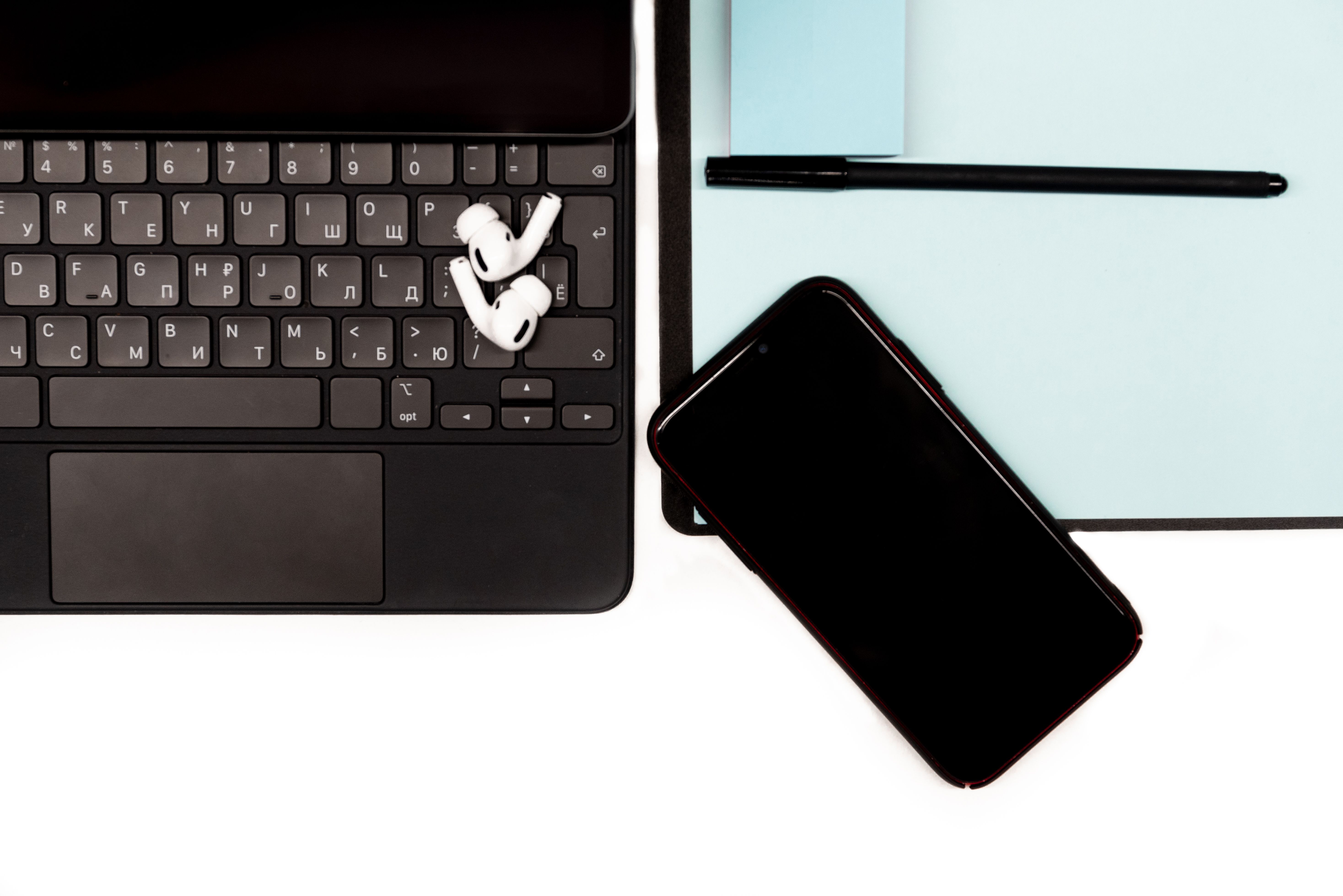
Photo by Andrea Piacquadio on Pexels
Update AirPods Firmware
AirPods firmware updates are installed automatically when the AirPods are in their case, charging, and near a connected iPhone. You cannot manually trigger an update, but you can verify the current firmware version.
Go to Settings > Bluetooth, tap the (i) next to your AirPods, and scroll down to find the Firmware Version. If an update is available, place the AirPods in the case with the lid open, connect the case to power, and keep your iPhone nearby. The update should install within 30 minutes.
Firmware updates have historically fixed issues with single-AirPod connectivity, audio routing, and battery drain that caused one AirPod to die faster than the other.
Test with a Different Device
To determine whether the problem is with the AirPod itself or with your iPhone's Bluetooth, pair the AirPods with a different device (another iPhone, an iPad, or a Mac). If the right AirPod works on a different device, the issue is specific to your iPhone's Bluetooth connection and a network settings reset on the iPhone may help.
Go to Settings > General > Transfer or Reset iPhone > Reset > Reset Network Settings. This clears all Bluetooth pairings, Wi-Fi passwords, and network configurations. After the restart, re-pair the AirPods and test again.
If the right AirPod does not work on any device, even after cleaning and resetting, the AirPod has a hardware issue. Contact Apple Support or visit an Apple Store. If the AirPods are within the one-year warranty or covered by AppleCare+, Apple will replace the affected AirPod.

Photo by Luis Quintero on Pexels
Frequently Asked Questions About Right AirPod Not Working
Why does only one AirPod stop working at a time?
Each AirPod has its own battery, Bluetooth connection, and speaker. They operate independently, so a dirty speaker mesh, a drained battery, or a pairing glitch affects only the one AirPod with the problem. The most common cause is earwax buildup on the speaker mesh of the more frequently used AirPod.
Can I buy a single replacement AirPod instead of a new pair?
Yes. Apple sells individual replacement AirPods through their website and Apple Stores. You can buy just the left AirPod, the right AirPod, or the charging case separately. The replacement AirPod pairs with your existing case and other AirPod. Pricing varies by AirPods generation.
How often should I clean my AirPods?
Clean the speaker mesh and charging contacts at least once a week if you use your AirPods daily. Use a dry, soft-bristled brush to remove earwax and debris. Avoid using liquids, compressed air, or sharp metal tools. Regular cleaning prevents the gradual volume loss that leads to one AirPod sounding quieter than the other.
Why does my right AirPod keep disconnecting during calls?
During calls, AirPods use the microphone on one AirPod (by default, whichever detects your voice better). If the right AirPod has a weak battery or a Bluetooth connection issue, it may disconnect when it switches to microphone mode. Check the battery level, clean the contacts, and reset the AirPods. You can also go to Settings, Bluetooth, tap the (i) next to your AirPods, and change the Microphone setting to "Always Left" to keep the right AirPod exclusively on audio playback.