Printer Not Printing? Common Causes and Fixes

Printer Not Printing? Common Causes and Fixes
You hit print, the document disappears from the screen, and nothing happens. A printer not printing is one of the most common and frustrating tech problems in homes and offices alike. Whether you have an HP, Canon, Epson, Brother, or any other brand, the troubleshooting process follows the same logical steps. Most printer failures come down to connection issues, paper jams, driver problems, or print queue errors, all of which you can fix yourself.
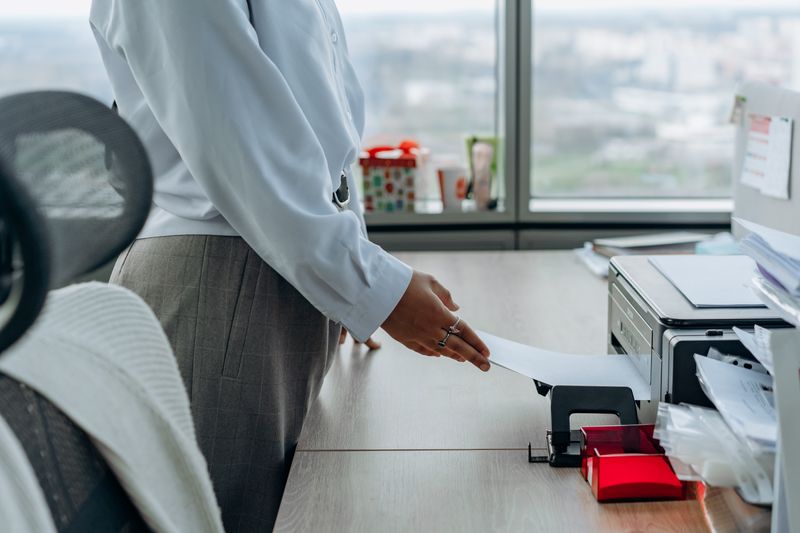
Quick Checks Before Troubleshooting
- Is the printer turned on? Check that the power light is on and the printer is not in sleep mode. Press the power button or any button to wake it up.
- Is it connected? Verify the USB cable is firmly plugged into both the printer and your computer, or confirm the printer shows a Wi-Fi connection on its display panel. Wireless printers should be on the same network as your computer.
- Is there paper? Open the paper tray and make sure it has paper loaded correctly. Sheets that are wrinkled, damp, or fanned incorrectly can cause feed failures.
- Does it have ink or toner? Check the ink or toner levels from the printer's display panel or from your computer's printer software. Some printers refuse to print entirely when any cartridge is empty, even if you are printing in black and white.

Clear the Print Queue
A stuck print job can block everything behind it. Clear the queue to start fresh.
On Windows
- Open Settings > Devices > Printers & scanners (Windows 10) or Settings > Bluetooth & devices > Printers & scanners (Windows 11).
- Click your printer and select Open print queue.
- Click Printer in the menu bar and select Cancel All Documents.
- Confirm the cancellation and try printing again.
On Mac
- Open System Settings > Printers & Scanners.
- Select your printer and click Open Print Queue.
- Select any stuck jobs and click the X button to remove them.
- Try printing again.
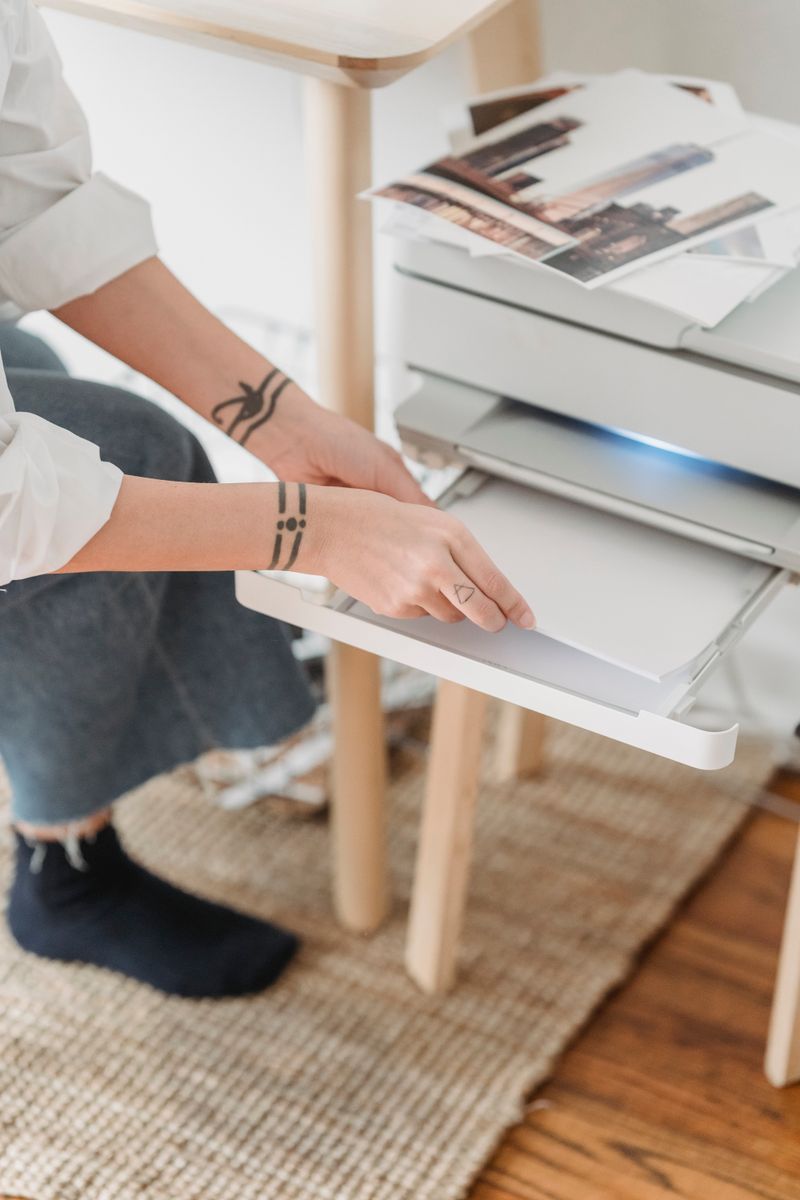
Set the Correct Default Printer
If you have installed multiple printers or virtual printers (like "Microsoft Print to PDF"), your computer may be sending jobs to the wrong one. On Windows, go to Settings > Devices > Printers & scanners, uncheck "Let Windows manage my default printer," then click your physical printer and select "Set as default." On Mac, go to System Settings > Printers & Scanners and set the Default printer dropdown to your actual printer.
Update or Reinstall Printer Drivers
Outdated or corrupted printer drivers are a leading cause of printing failures, especially after a Windows or macOS update.
On Windows
- Open Device Manager (right-click the Start button and select it).
- Expand Print queues, right-click your printer, and select Update driver.
- Choose "Search automatically for drivers." If Windows does not find a new driver, visit the printer manufacturer's website and download the latest driver for your model.
- If updating does not help, right-click the printer in Device Manager, select Uninstall device, then restart your computer. Windows will reinstall the driver automatically, or you can install the one you downloaded.
On Mac
- Go to System Settings > Printers & Scanners.
- Right-click your printer and select Remove Printer.
- Click the + button to add it back. macOS will automatically find and install the correct driver using AirPrint or the manufacturer's driver package.
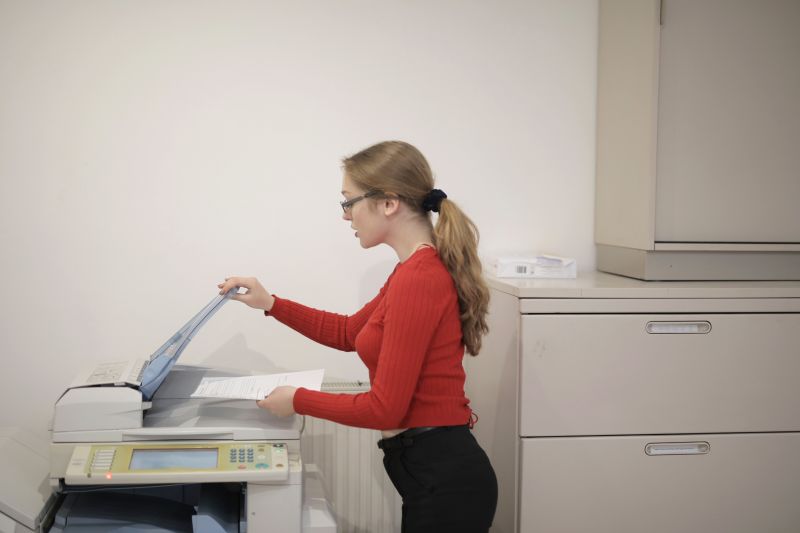
Check for Paper Jams
A paper jam can prevent all future print jobs even after the jammed paper is removed if a sensor still detects an obstruction. Open every access panel on the printer, including the rear panel and the toner or cartridge compartment. Look for torn pieces of paper, especially small fragments that are easy to miss. Gently pull any stuck paper in the direction it would normally travel. As HP's support documentation explains, even a small paper fragment left inside the printer can trigger a persistent jam error.
After removing any jammed paper, close all panels and restart the printer. The jam error should clear automatically.
If you're also having network problems, check our printer not connecting to wifi troubleshooting guide.
Run the Built-In Printer Troubleshooter
Both Windows and macOS have built-in tools to diagnose printing problems.
- Windows: Go to Settings > System > Troubleshoot > Other troubleshooters and run the Printer troubleshooter. It will check for common issues and attempt to fix them automatically.
- Mac: Reset the printing system by right-clicking in the blank area of the Printers & Scanners list and selecting Reset printing system. This removes all printers and lets you add them fresh.
If your printer shows as offline rather than not printing at all, check our dedicated guide on printer showing offline for specific steps to bring it back online.
Frequently Asked Questions About Printer Not Printing
Why does my printer say it is printing but nothing comes out?
This usually means the print head is clogged (inkjet) or the toner cartridge is empty or improperly installed (laser). Run a print head cleaning cycle from the printer's maintenance menu. For laser printers, remove and reseat the toner cartridge, making sure you have removed any protective tape or seals.
Can a full hard drive prevent printing?
Yes. Your computer creates a temporary spool file for each print job. If your hard drive is nearly full, the spool file cannot be created and the job fails silently. Free up disk space and try again.
Why does my printer only print blank pages?
Blank pages indicate the ink or toner is not being transferred to the paper. For inkjet printers, run a nozzle check and cleaning cycle. For laser printers, check that the toner cartridge is not empty and that the drum unit is properly installed. New cartridges sometimes ship with a protective strip that must be removed before use.
Should I use the manufacturer's driver or a generic driver?
Always use the manufacturer's driver when available. Generic drivers provide basic functionality but may not support all features like duplex printing, specific paper sizes, or advanced quality settings. Download the latest driver from the manufacturer's official website for the best compatibility.