Samsung Wi-Fi Not Working? Here's How to Fix It

Why Your Samsung Phone Won't Connect to Wi-Fi
Few things are more frustrating than picking up your Samsung Galaxy phone and finding it refuses to connect to Wi-Fi. When samsung wifi not working becomes an issue, the cause is usually something you can fix yourself. Whether the Wi-Fi toggle won't turn on, your phone keeps disconnecting, or it connects but has no internet access, the problem usually has a straightforward fix. Samsung Galaxy devices running One UI can experience Wi-Fi issues after software updates, due to misconfigured network settings, or because of interference from third-party apps.
If you're also having network problems, check our wi-fi keeps disconnecting troubleshooting guide.
If you're also having network problems, check our wi-fi not working on windows troubleshooting guide.
If you're also having network problems, check our wi-fi not connecting troubleshooting guide.
For other Samsung device problems, see our samsung charging not working guide.
If you're also having network problems, check our wi-fi connected but no internet troubleshooting guide.
This guide walks you through every proven fix for Samsung Wi-Fi problems, from quick restarts to advanced network resets. These steps work on all recent Samsung Galaxy models including the Galaxy S24, S25, S26, A-series, and Z Fold/Flip devices running One UI 5 through One UI 8.
Quick Preliminary Checks
Before diving into troubleshooting steps, rule out the obvious causes that account for most Wi-Fi failures on Samsung devices.
For related Bluetooth issues, see our guide on samsung bluetooth not working.
Verify Your Router Is Working
Check whether other devices in your home can connect to the same Wi-Fi network. If your laptop, tablet, or another phone also cannot connect, the issue is with your router or internet service provider, not your Samsung phone. Restart your router by unplugging it for 30 seconds, then plugging it back in and waiting two minutes for it to fully boot.
Check Airplane Mode
Swipe down from the top of your screen to open the Quick Settings panel. If Airplane Mode is enabled (the airplane icon is highlighted), tap it to turn it off. Airplane Mode disables all wireless radios including Wi-Fi, Bluetooth, and cellular data.
Make Sure Wi-Fi Is Toggled On
This sounds basic, but accidental taps in the Quick Settings panel can toggle Wi-Fi off without you noticing. Swipe down and confirm the Wi-Fi icon is active. If Wi-Fi is on but not connecting, tap and hold the Wi-Fi icon to open the full Wi-Fi settings and check which network your phone is trying to join.
Restart Your Samsung Phone
A simple restart clears temporary software glitches that often cause Wi-Fi problems. This is the single most effective fix and should always be your first real troubleshooting step.
- Press and hold the Side button and Volume Down button simultaneously for about three seconds.
- Tap Restart when the power menu appears.
- Wait for your phone to fully reboot and attempt to connect to Wi-Fi again.
If your phone is frozen and the power menu won't appear, hold the Side button and Volume Down button together for more than seven seconds to force a restart. This won't erase any data.
Forget and Reconnect to the Wi-Fi Network
Saved network credentials can become corrupted, especially after a router firmware update or if you changed your Wi-Fi password. Forgetting the network and reconnecting forces your phone to establish a fresh connection.
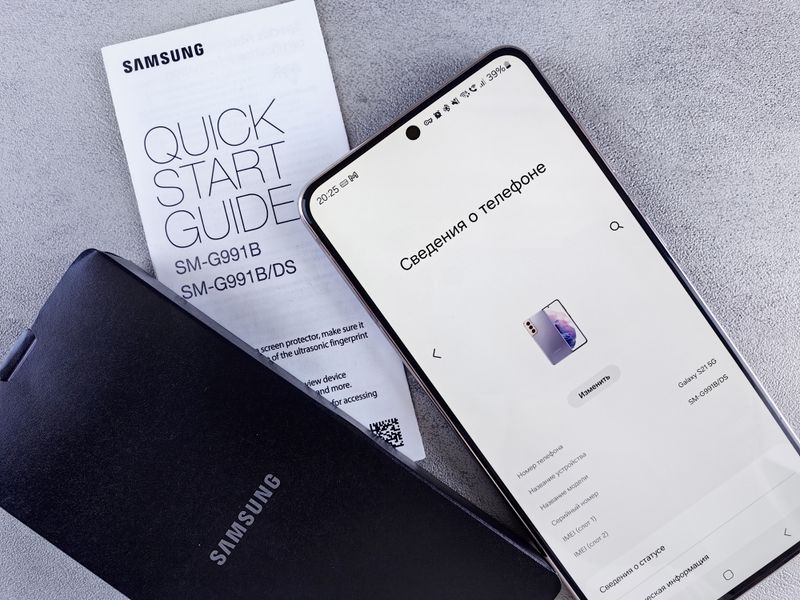
- Open Settings and tap Connections.
- Tap Wi-Fi to see your saved networks.
- Tap the gear icon next to the network that won't connect.
- Tap Forget at the bottom of the screen.
- Your phone will return to the Wi-Fi network list. Tap the network name and enter the password to reconnect.
Double-check that you're entering the correct password. Wi-Fi passwords are case-sensitive, and a common mistake is confusing uppercase and lowercase letters or mixing up similar-looking characters like the number 1 and lowercase L.
Check the Router's Frequency Band
Most modern routers broadcast on both 2.4 GHz and 5 GHz bands. If your router has separate network names for each band, try connecting to the other one. The 2.4 GHz band has better range but slower speeds, while 5 GHz offers faster speeds but shorter range. If you're far from your router, the 5 GHz signal may be too weak for a stable connection.
Disable Intelligent Wi-Fi Features
Samsung's Intelligent Wi-Fi settings can sometimes cause connectivity issues by aggressively switching between Wi-Fi and mobile data or by trying to optimize your connection in ways that disrupt it.
- Go to Settings > Connections > Wi-Fi.
- Tap the three-dot menu in the top-right corner and select Intelligent Wi-Fi (or Advanced on older One UI versions).
- Turn off Switch to mobile data. This feature automatically disconnects Wi-Fi when it detects a weak signal, which can cause your phone to keep dropping the connection.
- Also try disabling Wi-Fi power saving mode if it appears in this menu. Power saving can reduce Wi-Fi performance to save battery.
Some Galaxy S24 and S25 owners have reported that the Intelligent Wi-Fi feature caused repeated disconnections after One UI updates. Disabling these features resolved the issue in most cases.
Reset Network Settings
If forgetting individual networks and toggling settings hasn't helped, a full network reset returns all connection settings to their factory defaults. This erases all saved Wi-Fi networks, Bluetooth pairings, and mobile data settings, so you'll need to reconnect to every network afterward.
- Open Settings and tap General management.
- Tap Reset.
- Tap Reset network settings.
- Select your SIM card if prompted, then tap Reset settings.
- Enter your PIN or password to confirm.
- After the reset completes, go back to Settings > Connections > Wi-Fi and reconnect to your network.
Check for Software Updates
Samsung frequently releases software updates that fix connectivity bugs. Running an outdated version of One UI or the Android security patch can leave known Wi-Fi issues unpatched.
- Go to Settings > Software update.
- Tap Download and install.
- If an update is available, download it and restart your phone when prompted.
If your Wi-Fi problems started immediately after a software update, you're not alone. Several Galaxy S24 and S25 Ultra users have reported Wi-Fi dropping after specific One UI updates. In these cases, Samsung usually releases a patch within a few weeks. Check the Samsung Members app for known issues with your specific model and software version.
Boot into Safe Mode
Safe Mode disables all third-party apps, which helps you determine whether a downloaded app is causing the Wi-Fi problem. VPN apps, battery optimizers, and security apps are common culprits.
- Press and hold the Side button and Volume Down button until the power menu appears.
- Tap and hold Power off until the Safe Mode prompt appears.
- Tap Safe mode.
- Once the phone restarts in Safe Mode, try connecting to Wi-Fi.
If Wi-Fi works perfectly in Safe Mode, a third-party app is the cause. Restart your phone normally and uninstall recently downloaded apps one at a time until you identify the problematic one. To exit Safe Mode, simply restart your phone normally.
Clear the Wi-Fi Service Cache
The Wi-Fi framework stores cached data that can become corrupted. Clearing this cache can resolve persistent connection issues without affecting your personal data.
- Go to Settings > Apps.
- Tap the three-dot menu and select Show system apps.
- Search for Wi-Fi or scroll to find it in the list.
- Tap Storage.
- Tap Clear cache.
- Restart your phone and try connecting to Wi-Fi again.
Wipe the Cache Partition
If individual cache clears haven't worked, wiping the entire cache partition removes all temporary system files without deleting your apps or personal data. This is particularly effective after a major software update.
- Turn off your Samsung phone completely.
- Press and hold the Volume Up button and Side button simultaneously.
- Release both buttons when the Samsung logo appears.
- Use the Volume buttons to navigate to Wipe cache partition and press the Side button to select it.
- Select Yes and wait for the process to complete.
- Select Reboot system now.
Change DNS Settings
Sometimes the issue isn't with the Wi-Fi connection itself but with the DNS server your phone is using. Switching to a public DNS server like Google DNS or Cloudflare can resolve issues where Wi-Fi connects but web pages won't load.
- Go to Settings > Connections > Wi-Fi.
- Tap the gear icon next to your connected network.
- Tap View more to expand the advanced options.
- Change IP settings from DHCP to Static.
- Set DNS 1 to
8.8.8.8and DNS 2 to8.8.4.4(Google DNS) or1.1.1.1and1.0.0.1(Cloudflare DNS). - Leave other fields unchanged and tap Save.
Factory Reset as a Last Resort
If nothing else has worked and Wi-Fi remains broken, a factory reset will return your phone to its original software state. This erases everything on your phone, so back up your data first using Samsung Cloud or Google Drive.
- Go to Settings > General management > Reset.
- Tap Factory data reset.
- Scroll down and tap Reset.
- Enter your PIN and tap Delete all.
After the factory reset, set up your phone and connect to Wi-Fi before restoring your apps and data. If Wi-Fi still doesn't work after a factory reset, the issue is almost certainly hardware-related, and you should contact Samsung Support or visit an authorized service center.
When to Contact Samsung Support
If you've tried every fix in this guide and your Samsung phone still won't connect to Wi-Fi, the problem is likely a hardware defect. The Wi-Fi antenna or chip inside the phone may be damaged, especially if the phone was dropped or exposed to water. Visit our tech troubleshooting blog for guides on other Samsung issues, or contact Samsung directly through the Samsung Members app for warranty service.
You can also use the Samsung Members app to run a hardware diagnostic. Open the app, tap Get help, then Phone diagnostics, and run the Wi-Fi test. If the test fails, your phone needs professional repair.
Fix Samsung TV Wi-Fi Issues
While this guide focuses primarily on Samsung Galaxy phones, Samsung Smart TVs also frequently experience Wi-Fi connectivity problems. The troubleshooting steps for TVs differ in a few key ways.
Check DNS Settings on Your Samsung TV
Samsung TVs are known for DNS-related connection issues. Go to Settings > General > Network > Network Status > IP Settings on your TV. Change the DNS setting from Automatic to Manual and enter 8.8.8.8 as the DNS server. This bypasses potential DNS resolution problems with your internet provider and uses Google's public DNS instead.
Update Your Samsung TV's Software
Samsung TV firmware updates often fix Wi-Fi stability issues. Navigate to Settings > Support > Software Update > Update Now. If the TV can't connect to Wi-Fi to download the update, you can download it to a USB drive from Samsung's support website and install it manually.
Reset the Smart Hub
If your Samsung TV connects to Wi-Fi but apps won't load or stream, try resetting the Smart Hub. Go to Settings > Support > Device Care > Self Diagnosis > Reset Smart Hub. This reinstalls all your apps and resets the TV's network stack without affecting your Wi-Fi settings or Samsung account.
If these steps don't resolve your issue, visit Samsung Support for additional troubleshooting resources and guides.
Frequently Asked Questions About Samsung Wifi Not Working
Why does my Samsung keep disconnecting from Wi-Fi?
Frequent disconnections are usually caused by the Intelligent Wi-Fi feature switching your phone to mobile data when it detects a weak Wi-Fi signal. Go to Settings > Connections > Wi-Fi > Intelligent Wi-Fi and turn off "Switch to mobile data." If that doesn't help, the issue may be caused by a software update bug or interference from a third-party app.
Why won't my Samsung phone detect any Wi-Fi networks?
If your phone can't find any networks at all, first make sure Airplane Mode is off and Wi-Fi is toggled on. Try restarting your phone. If it still can't detect networks, the Wi-Fi hardware may be malfunctioning. Boot into Safe Mode to rule out app interference, and if the problem persists, run a diagnostic through the Samsung Members app.
Does resetting network settings delete my data?
No, resetting network settings only erases saved Wi-Fi passwords, Bluetooth pairings, and mobile data configurations. Your photos, apps, messages, and other personal data remain untouched. You will need to re-enter Wi-Fi passwords and re-pair Bluetooth devices afterward.
Can a software update cause Wi-Fi problems on Samsung phones?
Yes. Several Galaxy S24 and S25 users have reported Wi-Fi connectivity issues after specific One UI updates. Samsung typically releases a fix within a few weeks. In the meantime, try resetting network settings or disabling Intelligent Wi-Fi features. Check the Samsung Members community and the Samsung Members app for known issues with your model's current software version.
How do I fix Wi-Fi on my Samsung TV?
Samsung TV Wi-Fi issues are different from phone issues. Start by checking your TV's DNS settings under Settings > General > Network > Network Status > IP Settings. Try switching DNS to manual and entering 8.8.8.8. If that doesn't work, restart both your TV and router. You can also try connecting with an ethernet cable to verify whether the issue is with Wi-Fi specifically or with the TV's network hardware. Visit our GeoTagImg editor to geotag photos for your tech repair business and improve your local search visibility.