Roku Remote Not Working? Try These Easy Fixes

Why Your Roku Remote Stopped Working
You sit down to watch something, press a button on your Roku remote, and nothing happens. When roku remote not working becomes an issue, the cause is usually something you can fix yourself. The TV stays frozen on the last screen, the home button doesn't respond, and none of the directional buttons work. Roku remote problems are one of the most common issues Roku users face, and they range from dead batteries to a lost wireless pairing between the remote and the streaming device.

The fix depends on which type of Roku remote you have. Roku ships two types: simple remotes that use infrared (IR) to communicate with the Roku device, and enhanced voice remotes that use radio frequency (RF) signals and connect over a wireless protocol. Understanding which one you have determines which troubleshooting steps apply. This guide covers both types and walks you through every fix from the simplest to the most advanced.
Identify Your Roku Remote Type
Before troubleshooting, figure out which type of Roku remote you have. This matters because IR remotes and RF remotes fail for different reasons and require different fixes.
For other Samsung device problems, see our samsung charging not working guide.
Infrared (IR) Simple Remote
If your remote has no microphone button and no pairing button (no small button inside the battery compartment or on the back), it's an IR remote. IR remotes send invisible light signals to a sensor on the front of your Roku device. They require a clear line of sight to work. Most Roku Express and older Roku devices ship with IR remotes.
Enhanced Voice Remote (RF/Wi-Fi)
If your remote has a microphone button (for voice search), a headphone jack, or a pairing button in the battery compartment, it's an enhanced voice remote. These remotes communicate over radio frequency or Wi-Fi Direct, which means they don't need a direct line of sight. Roku Streaming Stick, Roku Ultra, and most newer Roku TVs come with enhanced voice remotes.
Replace or Reseat the Batteries
Dead or weak batteries cause the majority of Roku remote failures. Even if the batteries are not completely dead, low charge can prevent the remote from transmitting a strong enough signal to reach the Roku device.
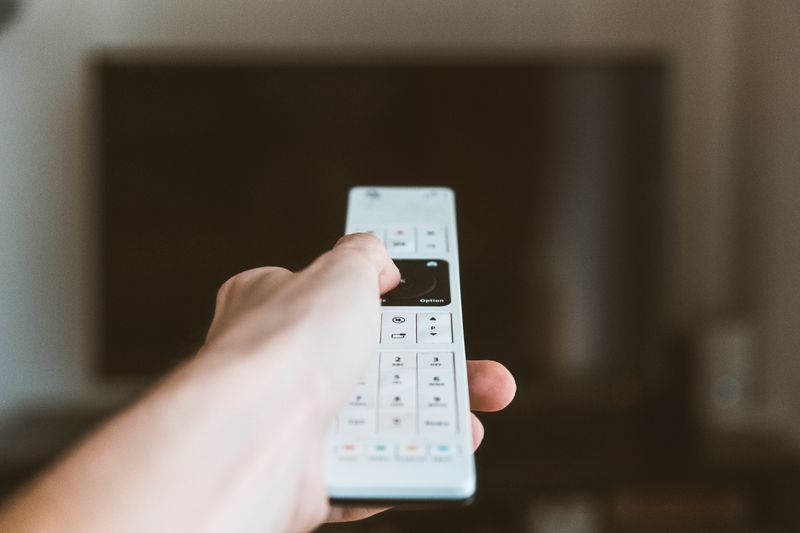
- Remove the battery cover from the back of your remote. On most Roku remotes, slide the cover down and lift it off.
- Remove the existing batteries and check whether they are AA or AAA (varies by remote model).
- Insert fresh, brand-new batteries with the correct polarity (match the + and - markings inside the battery compartment).
- Replace the battery cover and test the remote.
Even if you recently replaced the batteries, try a different pair. Rechargeable batteries deliver slightly lower voltage than disposable alkaline batteries and may not provide enough power for the remote's wireless radio. If you're using rechargeable batteries and having issues, switch to standard alkaline batteries to test.
Clean the Battery Contacts
If the metal contacts inside the battery compartment are corroded or dirty, the batteries won't make a reliable electrical connection. Use a cotton swab dipped in rubbing alcohol to clean the metal springs and contact plates inside the battery compartment. Let them dry completely before reinserting batteries.
Fix IR Remote Issues (Line of Sight)
If you have an IR (simple) remote, the remote must have a clear, unobstructed path to the IR sensor on your Roku device. IR signals cannot pass through walls, cabinets, or other solid objects.
- Make sure nothing is blocking the front of your Roku device. Soundbars, books, decorations, and other objects placed in front of the IR sensor will block the signal.
- Point the remote directly at the Roku device, not at the TV screen. The IR sensor is on the Roku player itself.
- Move closer to the Roku device. IR range is typically 5 to 10 meters (15 to 30 feet), but this can vary depending on lighting conditions and battery strength.
- Check for bright light interference. Strong sunlight or halogen lights shining directly on the Roku's IR sensor can interfere with the signal. Try closing blinds or repositioning the Roku device.
Test the IR Emitter
You can verify whether your IR remote is actually sending a signal using your phone's camera. Point the remote at your phone's front-facing camera and press any button. If the remote is working, you'll see a faint purple or white flash from the IR emitter at the top of the remote. If you see nothing, the remote's IR LED may be dead and the remote needs to be replaced.
Re-Pair an Enhanced Voice Remote
Enhanced voice remotes (RF/Wi-Fi) need to be paired with the Roku device to work. If the pairing is lost, which can happen after a power outage, firmware update, or factory reset, the remote will stop responding even with fresh batteries.
- Remove the batteries from the remote.
- Unplug the Roku device from power and wait at least 30 seconds. This ensures the device fully resets its wireless state.
- Plug the Roku device back in and wait for it to fully boot. You should see the Roku home screen on your TV.
- Reinsert the batteries in the remote.
- Press and hold the pairing button inside the battery compartment for three to five seconds. On some remotes, the pairing button is a small recessed button on the back. The pairing light on the remote should begin flashing.
- Wait 30 seconds for the remote and Roku to find each other and pair. The pairing light will stop flashing when the connection is established.
If the pairing light flashes but never connects, try moving the remote closer to the Roku device during the pairing process. Interference from other wireless devices like routers, baby monitors, and microwave ovens can disrupt the pairing signal.
Use the Roku Mobile App as a Temporary Remote
While troubleshooting your physical remote, you can control your Roku device using the free Roku mobile app on your smartphone. This is also a useful diagnostic tool because if the app can control the Roku but the physical remote can't, the problem is confirmed to be with the remote rather than the Roku device itself.
- Download the Roku app from the App Store (iPhone) or Google Play Store (Android).
- Make sure your phone is connected to the same Wi-Fi network as your Roku device.
- Open the app and tap Devices at the bottom of the screen.
- Select your Roku device from the list.
- Tap the Remote icon to use your phone as a virtual remote control.
The mobile app provides full remote functionality including directional navigation, volume control, voice search, and a keyboard for text entry. It's actually faster than the physical remote for entering passwords and search terms.
Restart Your Roku Device
A software glitch on the Roku device itself can cause it to stop responding to remote commands, even though the remote is working correctly. Restarting the device clears its memory and reloads the operating system.

Using the Settings Menu (If You Can Navigate)
- Navigate to Settings > System > System restart.
- Select Restart and confirm.
By Unplugging (If You Can't Navigate)
- Unplug the Roku device from its power source.
- Wait at least 60 seconds. This gives the device enough time to fully discharge and clear its volatile memory.
- Plug it back in and wait for the home screen to appear.
- Test the remote.
For Roku TVs, you can also try a soft restart by pressing and holding the power button on the TV itself (not the remote) for about 20 seconds until the TV restarts.
Check for and Install Roku Software Updates
Outdated Roku software can cause compatibility issues with remotes, especially if you've recently replaced your remote with a newer model. Software updates also fix known bugs that affect remote responsiveness.
- Navigate to Settings > System > Software update (use the Roku mobile app if your physical remote isn't working).
- Select Check now.
- If an update is available, install it and let the Roku device restart.
After the update, re-pair your enhanced voice remote if it doesn't automatically reconnect. Some major Roku OS updates reset wireless pairings.
Check for HDMI-CEC Interference
HDMI-CEC (Consumer Electronics Control) allows devices connected via HDMI to control each other. Sometimes this feature causes conflicts where your TV or other connected devices intercept or interfere with Roku remote commands.

- On your TV's settings menu (not the Roku menu), look for HDMI-CEC settings. Different TV brands call this feature different names: Samsung calls it Anynet+, LG calls it SimpLink, Sony calls it BRAVIA Sync.
- Try disabling HDMI-CEC temporarily and test your Roku remote.
- If the remote works with CEC disabled, re-enable CEC and instead change the CEC settings to limit which device has control priority.
Check for Wi-Fi Interference (Enhanced Remotes)
Enhanced voice remotes that use Wi-Fi Direct can be affected by Wi-Fi congestion, especially in apartments or dense neighborhoods with many overlapping wireless networks.
- Move your Wi-Fi router away from your Roku device if they're sitting right next to each other. Placing them at least three feet apart reduces interference.
- If possible, change your router's Wi-Fi channel. Channels 1, 6, and 11 on 2.4 GHz have the least overlap. Most routers have an auto-channel selection that handles this.
- Remove or move other wireless devices from the immediate area around your Roku device, including wireless speakers, baby monitors, and cordless phones.
Factory Reset Your Roku Device
If nothing else has worked, a factory reset returns the Roku device to its original state. This erases all your apps, settings, accounts, and preferences, so you'll need to set up the device from scratch.
From the Settings Menu
- Navigate to Settings > System > Advanced system settings > Factory reset.
- Follow the on-screen prompts. You may need to enter a code displayed on the screen.
Using the Physical Reset Button
If you can't access the settings menu, most Roku devices have a physical reset button.
- Find the reset button on your Roku device. It's usually a small pinhole button on the back or bottom.
- Use a paperclip or similar thin object to press and hold the button for about 10 seconds.
- The device will restart and return to the setup screen.
- Re-pair your remote during the initial setup process.
If you're also having network problems, check our roku wifi not working troubleshooting guide.
When to Replace Your Roku Remote
If you've tried every fix in this guide and your remote still doesn't work, the remote itself is likely defective. Replacement Roku remotes are available directly from Roku's website and from major retailers. Make sure you buy a remote that's compatible with your specific Roku model.
- IR remotes are universal and work with any Roku device that has an IR sensor.
- Enhanced voice remotes must be compatible with your Roku device's model year and hardware. Check Roku's compatibility chart before purchasing.
- Third-party universal remotes can control Roku devices over IR but won't have Roku-specific features like voice search or the headphone jack.
As a permanent alternative, the free Roku mobile app provides the same functionality as the physical remote and is always available on your phone. Check out our tech troubleshooting blog for more streaming device guides and tips.
If these steps don't resolve your issue, visit Roku Support for additional troubleshooting resources and guides.
Frequently Asked Questions About Roku Remote Not Working
Why does my Roku remote work sometimes but not others?
Intermittent remote failures are usually caused by weak batteries, Wi-Fi interference (for enhanced remotes), or a partially obstructed IR path (for simple remotes). Replace the batteries first. If the problem continues with fresh batteries, check for wireless interference from nearby devices and make sure nothing is periodically blocking the line of sight to your Roku device.
Can I use any remote with my Roku?
IR (simple) Roku remotes are compatible with any Roku device that has an IR receiver. Enhanced voice remotes need to be paired and are model-specific, so check compatibility before buying a replacement. Universal remotes that support IR can be programmed to control basic Roku functions, but they won't support voice search, the private listening headphone jack, or other enhanced features.
How do I pair a new Roku remote?
For enhanced voice remotes, insert batteries, then press and hold the pairing button inside the battery compartment for three to five seconds until the pairing light flashes. The Roku device should detect the remote within 30 seconds. For IR simple remotes, no pairing is needed. Just insert batteries and point the remote at the Roku device.
Why does my Roku remote have a delay when I press buttons?
Button lag is usually caused by the Roku device being overloaded or by Wi-Fi congestion (for enhanced remotes). Restart the Roku device to clear its memory. If the lag persists, check whether your Roku is running low on storage by going to Settings > System > About. Deleting unused channels can free up resources. For enhanced remotes, reducing Wi-Fi interference as described in this guide can also improve responsiveness.
Does the Roku mobile app work as well as the physical remote?
The Roku mobile app provides all the same navigation and control features as the physical remote, including voice search. It also offers a keyboard for easier text entry, the ability to stream audio to your phone's headphone jack (private listening), and the option to cast photos and videos from your phone to the TV. The main downside is that it requires your phone to be connected to the same Wi-Fi network as your Roku device. Use the GeoTagImg photo editor to organize and geotag your photos before streaming them to your Roku TV.



