Left AirPod Not Working? Try These Simple Fixes

A left AirPod not working is one of the most common issues Apple earbud owners face. A dead battery, debris stuck in the speaker mesh, or a simple software glitch can make one AirPod go silent while the other works perfectly fine. Before you spend money on a replacement, try the fixes below. Most of them take less than five minutes.
Photo by Danh Huynh on Pexels
Why Is Your Left AirPod Not Working?
Several things can cause a single AirPod to stop producing sound or fail to connect. The most common culprits include:
Earwax or debris blocking the speaker mesh
A drained battery in the left AirPod specifically
Audio balance settings shifted to the right channel
A Bluetooth pairing glitch that drops one earbud from the connection
Dirty charging contacts preventing the left AirPod from charging properly in the case
Physical damage from a drop or water exposure
A left AirPod not working can usually be traced to one of these causes. Work through the fixes below in order. Each one rules out a specific problem, so by the end you will know exactly what is going on.
Check the Audio Balance on Your Device
This is the easiest thing to overlook. If the audio balance slider on your iPhone or iPad has been nudged to the right, your left AirPod will sound quiet or completely silent. It takes about ten seconds to check.
Open Settings on your iPhone or iPad.
Tap Accessibility.
Tap Audio/Visual.
Look at the Balance slider at the bottom of the screen.
Make sure the slider is centered between L and R. If it is pushed to the right, drag it back to the middle.
On a Mac, go to System Settings > Sound > Output and check the balance slider there. This setting syncs separately from your phone, so both devices are worth checking.
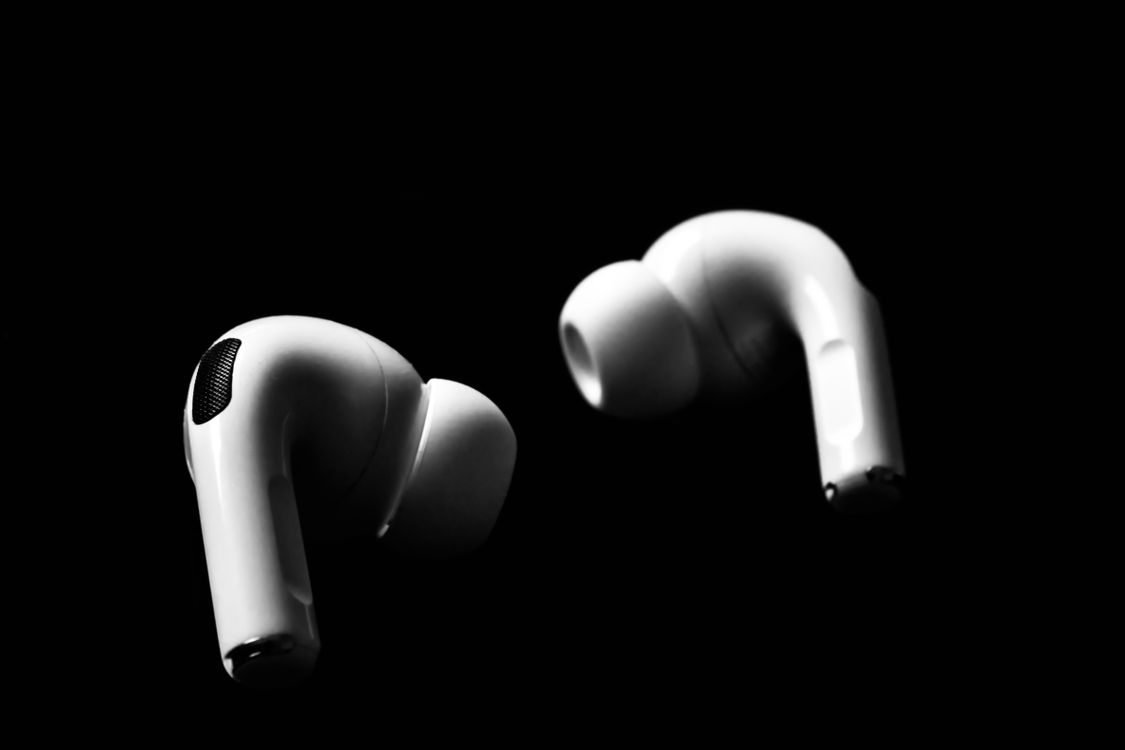
Photo by Kavin Pradeep on Pexels
Clean the Left AirPod and Charging Contact
Dirt, earwax, and pocket lint are some of the most frequent reasons a single AirPod goes quiet. The speaker mesh on AirPods is tiny, and even a thin layer of buildup can block sound almost entirely.
Clean the Speaker Mesh
Grab a clean, dry, soft-bristled brush. An unused toothbrush or a small electronics brush works well. Gently brush across the speaker mesh opening on the bottom of the left AirPod. Brush downward so debris falls away from the mesh instead of getting pushed further in.
Do not use water, rubbing alcohol, or compressed air. Liquids can seep into the internals, and compressed air can force particles deeper into the mesh. A dry brush is all you need.
If there is visible wax buildup that a brush cannot remove, try using a piece of poster tack (like Blu Tack). Press it gently against the mesh and peel it away. The sticky surface pulls debris out without pushing anything in.
Clean the Charging Contacts
The left AirPod has a small metal contact on its stem that connects with a matching contact inside the charging case. If either one is dirty, the AirPod will not charge properly and may appear dead even after sitting in the case for hours.
Use a dry, lint-free cloth or a dry cotton swab to wipe the metal contact on the AirPod stem. Then do the same inside the case at the bottom of the left slot. Look for any lint or residue and clean it away gently.
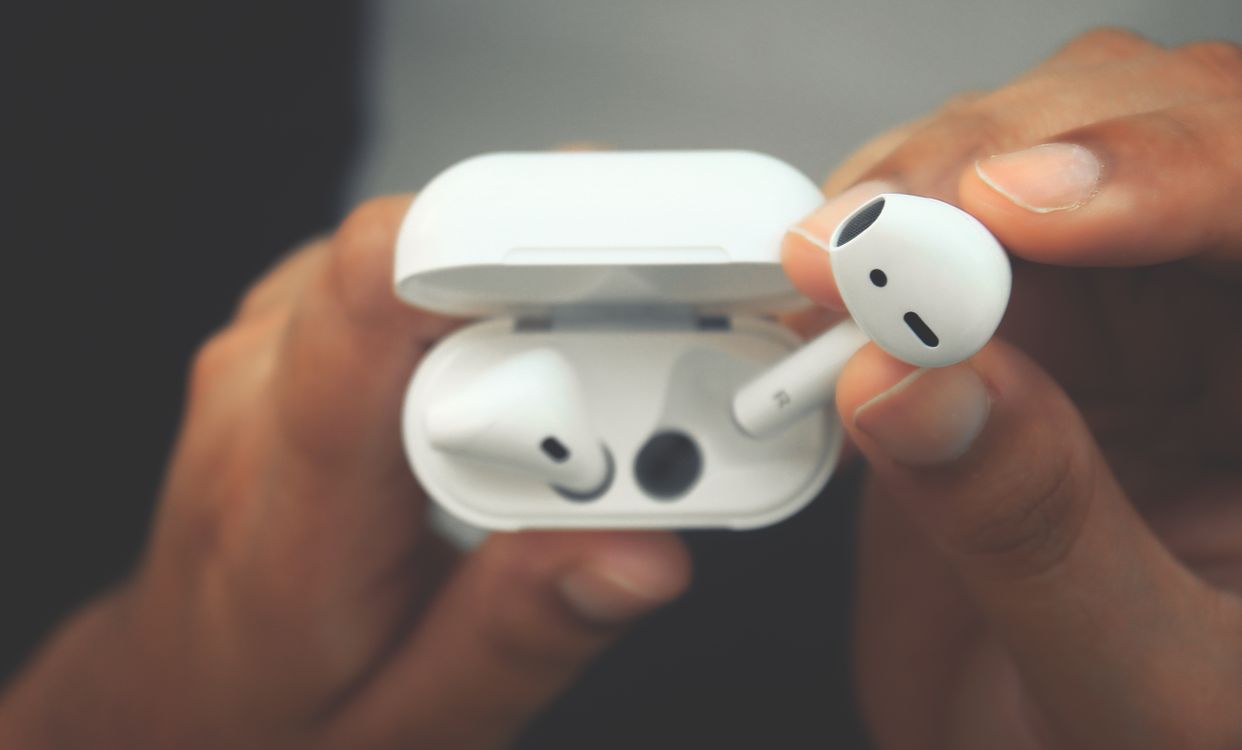
Photo by Nixon Johnson on Pexels
Charge Both AirPods Fully
A left AirPod that will not connect or play audio might simply be out of battery. The two AirPods drain at slightly different rates depending on usage, so it is normal for one to die before the other.
Place both AirPods in the charging case and close the lid. Wait at least 15 to 20 minutes. Then open the case near your iPhone and check the battery popup that appears on screen. You should see separate battery levels for the left AirPod, the right AirPod, and the case.
If the left AirPod still shows 0% or does not appear in the battery popup at all, the charging contacts may be the issue. Go back to the cleaning step above and make sure those contacts are spotless.
Forget and Re-Pair Your AirPods
Bluetooth connections can get stuck in a bad state, especially after a software update. Removing the AirPods from your device and pairing them fresh often clears up connection problems that affect only one earbud.
Open Settings on your iPhone.
Tap Bluetooth.
Find your AirPods in the list and tap the info (i) button next to them.
Tap Forget This Device and confirm.
Put both AirPods back in the case and close the lid.
Wait about 10 seconds, then open the lid near your iPhone.
Follow the on-screen pairing prompt to reconnect.
After re-pairing, play some audio and check if both AirPods are working. This step fixes a surprising number of "one AirPod not working" problems.
Reset Your AirPods to Factory Settings
If forgetting and re-pairing did not help, a full factory reset is the next step. This wipes the AirPods' internal settings and starts fresh.
Put both AirPods in the charging case and close the lid.
Wait 30 seconds.
Open the lid (leave the AirPods inside).
Press and hold the setup button on the back of the case for about 15 seconds.
The status light will flash amber, then turn white. Release the button when you see the white flash.
Your AirPods are now reset. Bring the open case near your iPhone and follow the pairing setup again from scratch.
Photo by ready made on Pexels
Test With a Different Device
If the left AirPod still is not working after a reset, try connecting to a completely different device. Pair them with another iPhone, an iPad, a Mac, or even an Android phone using standard Bluetooth.
If the left AirPod works on the other device, the problem is on your original phone. Check for a pending software update or try restarting the phone.
If the left AirPod stays silent on a second device too, the issue is with the AirPod hardware itself. A left AirPod not working on any device points to physical damage rather than a software problem.
Check for Physical Damage
AirPods are water-resistant, but they are not waterproof. Sweat from workouts, rain, or an accidental drop in water can damage the internal speaker or microphone over time. Even a short fall onto a hard surface can knock something loose inside.
Look closely at the left AirPod. Are there visible cracks, dents, or discoloration near the speaker opening? If the AirPod was recently exposed to moisture, let it air dry completely (at least 24 hours outside the case) before testing again.
If you suspect hardware damage, contact Apple Support or visit an Apple Store. Apple offers single AirPod replacements, so you do not need to buy a whole new pair. The cost depends on your warranty and AppleCare+ status.
If the microphone on your AirPods is also giving you trouble, check out our guide on fixing an AirPods microphone that is not working. You can also explore more tech troubleshooting articles on our blog.
Photo by Jessica Lewis on Pexels
Frequently Asked Questions
Why does only my left AirPod keep disconnecting?
The most common reason is a dirty charging contact that prevents the left AirPod from fully charging. When the battery drops too low, it disconnects mid-use. Clean both the AirPod stem and the inside of the case. If the problem continues after cleaning and a factory reset, the battery in the left AirPod may be degraded and need replacement through Apple.
Can Apple replace just one AirPod?
Yes. Apple sells individual AirPod replacements through their support page or at an Apple Store. If you have AppleCare+, the replacement cost is significantly lower. You can also check if the AirPod is still under the standard one-year warranty, which covers manufacturing defects at no charge.
How do I know if my left AirPod battery is dead?
Open the charging case near your iPhone with both AirPods inside. A battery popup should appear on screen showing the charge level for each AirPod individually. If the left AirPod does not show up at all, or shows 0% and will not charge, the battery may be fully depleted or the charging contact may be blocked.
Does the left AirPod drain faster than the right?
It can, depending on how you use them. If you use Siri frequently, the AirPod set as the active microphone handles more processing and drains faster. You can check which AirPod is set as the microphone in Settings > Bluetooth > AirPods info > Microphone. Switching it to "Automatically Switch AirPods" helps balance the drain between both sides.