Wi-Fi Connected but No Internet? Fix It With These Steps

Wi-Fi Connected but No Internet? Fix It With These Steps
There is something uniquely frustrating about seeing your device connected to Wi-Fi yet having no internet access. When wifi connected but no internet becomes an issue, the cause is usually something you can fix yourself. Your computer or phone shows a strong signal and claims to be connected, but web pages refuse to load, apps cannot fetch data, and everything feels broken. This "connected, no internet" problem is incredibly common and almost always fixable.
The key to solving this issue is understanding that your Wi-Fi connection and your internet connection are two separate things. Being connected to Wi-Fi means your device is talking to your router. Having internet means your router is successfully reaching the outside world. When one works but the other does not, you get the dreaded "connected, no internet" status. Let us walk through exactly how to fix it.
Diagnose Where the Connection Breaks
Before trying random fixes, spend two minutes pinpointing where the problem lies. This can save you significant troubleshooting time.
If you're also having network problems, check our smart tv wifi not working troubleshooting guide.
If you're also having network problems, check our hotspot connected but no internet troubleshooting guide.
If you're also having network problems, check our wi-fi keeps disconnecting troubleshooting guide.
If you're also having network problems, check our wi-fi not working on windows troubleshooting guide.
If you're also having network problems, check our wi-fi not connecting troubleshooting guide.
The Quick Ping Test
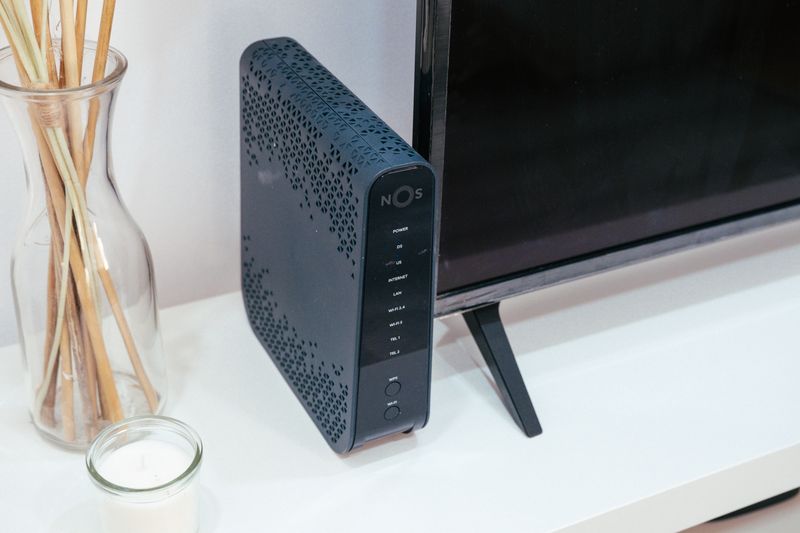
This simple test tells you whether the problem is with your DNS settings or your actual internet connection.
- Open Command Prompt on Windows (type "cmd" in the Start menu) or Terminal on Mac.
- Type
ping 8.8.8.8and press Enter. - Wait for the results.
If you get replies (something like "Reply from 8.8.8.8: bytes=32 time=15ms"), your internet connection is actually working. The problem is almost certainly DNS-related, and changing your DNS server will fix it. Skip ahead to the DNS section below.
If you get "Request timed out", your device truly cannot reach the internet. The problem is between your device and your router, or between your router and your ISP. Continue with the fixes in order.
Check If It Is Just Your Device
Try accessing the internet on another device connected to the same Wi-Fi network:
- Other devices work fine: The problem is with your specific device's network configuration.
- All devices are affected: The problem is with your router or your ISP. Focus on router-side fixes.
- Your device works on a phone hotspot: This confirms the problem is between your router and the internet, not with your device's hardware.
Quick Fixes to Try First
These straightforward solutions resolve the "connected, no internet" problem for the majority of users.
1. Restart Your Router and Modem
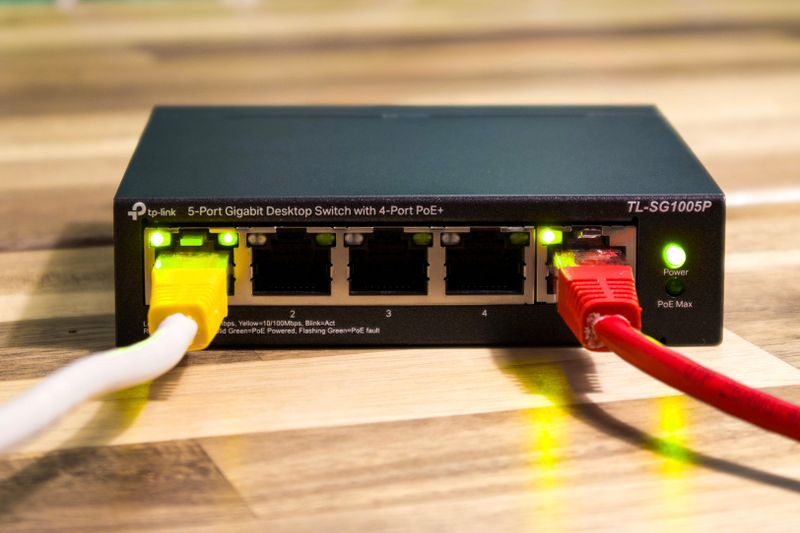
This is the single most effective fix for internet connectivity issues. Routers can develop software glitches over time that prevent them from routing traffic properly.
- Unplug the power cable from your router.
- If you have a separate modem, unplug it as well.
- Wait 60 seconds (a full minute ensures all capacitors discharge and the device fully resets).
- Plug the modem back in and wait 2 minutes for it to establish a connection with your ISP.
- Plug the router back in and wait for all lights to stabilize.
- Try connecting again.
2. Restart Your Device
A restart refreshes your device's network stack, clears cached DNS entries, and renews your IP address. This simple step fixes temporary glitches that cause the "no internet" status even when the connection is technically active.
3. Forget and Rejoin the Network
Removing the saved network profile and reconnecting forces your device to negotiate a fresh connection with the router, including getting a new IP address.
On Windows: Settings > Network & internet > Wi-Fi > Manage known networks. Find your network, click Forget, then reconnect.
On Mac: System Settings > Wi-Fi > click Details next to your network > Forget This Network.
On iPhone: Settings > Wi-Fi > tap the (i) icon > Forget This Network.
On Android: Settings > Network & internet > Wi-Fi > long-press your network > Forget.
Fix DNS Problems
DNS (Domain Name System) translates website names like "google.com" into IP addresses your device can reach. When DNS fails, your internet connection works but your device cannot find any websites, which looks exactly like "connected, no internet."

4. Flush Your DNS Cache
Your device caches DNS lookups to speed up browsing. If this cache becomes corrupted, it can prevent websites from loading.
On Windows:
- Open Command Prompt as administrator.
- Type
ipconfig /flushdnsand press Enter. - You should see "Successfully flushed the DNS Resolver Cache."
On Mac:
- Open Terminal.
- Type
sudo dscacheutil -flushcache; sudo killall -HUP mDNSResponderand press Enter. - Enter your password when prompted.
5. Change Your DNS Server
If your ISP's DNS server is down or slow, switching to a public DNS server can immediately restore internet access.
On Windows:
- Open Settings > Network & internet > Wi-Fi.
- Click your connected network's properties.
- Scroll to DNS server assignment and click Edit.
- Switch to Manual.
- Enable IPv4 and enter:
- Preferred DNS: 8.8.8.8 (Google)
- Alternate DNS: 8.8.4.4
- Click Save.
On Mac:
- Open System Settings > Wi-Fi.
- Click Details next to your connected network.
- Select DNS from the sidebar.
- Click + and add 8.8.8.8 and 8.8.4.4.
- Click OK.
On iPhone:
- Go to Settings > Wi-Fi.
- Tap the (i) next to your network.
- Tap Configure DNS > Manual.
- Delete existing servers and add 8.8.8.8 and 8.8.4.4.
- Tap Save.
Other reliable DNS options include Cloudflare (1.1.1.1 and 1.0.0.1) and OpenDNS (208.67.222.222 and 208.67.220.220).
Fix IP Address and Network Configuration Issues
Your device needs a valid IP address to communicate with the router and the internet. Configuration problems at this level are a frequent cause of the "connected, no internet" issue.

6. Release and Renew Your IP Address
If your device has an outdated or conflicting IP address, releasing and renewing it gets a fresh assignment from your router.
On Windows:
- Open Command Prompt as administrator.
- Type
ipconfig /releaseand press Enter. - Type
ipconfig /renewand press Enter. - Wait for the new IP address to be assigned.
On Mac:
- Open System Settings > Wi-Fi.
- Click Details next to your network.
- Select TCP/IP.
- Click Renew DHCP Lease.
7. Check for IP Address Conflicts
An IP address conflict occurs when two devices on the same network are assigned the same IP address. This can cause intermittent or complete loss of internet access.
- On Windows, open Command Prompt and type
ipconfig. - Note your IPv4 Address (something like 192.168.1.105).
- If your address starts with 169.254, your device could not get an address from the router (APIPA address). This means the DHCP server on your router is not responding to your device.
If you have a 169.254 address, restart your router. If the problem persists, try assigning a static IP address outside your router's DHCP range.
8. Disable Proxy Settings
A misconfigured proxy can route all your traffic through a non-existent server, making it appear as though you have no internet.
On Windows:
- Open Settings > Network & internet > Proxy.
- Make sure Use a proxy server is set to Off.
- Also check that Automatically detect settings is On.
On Mac:
- Open System Settings > Wi-Fi > Details for your network.
- Select Proxies.
- Make sure all proxy types are unchecked.
Windows-Specific Fixes
Windows has some unique settings that can cause the "connected, no internet" problem.

9. Reset the Network Stack
This comprehensive reset clears all network configuration and is one of the most reliable fixes for persistent connectivity issues on Windows.
- Open Command Prompt as administrator.
- Run these commands one at a time:
netsh winsock reset
netsh int ip reset
ipconfig /release
ipconfig /flushdns
ipconfig /renew
- Restart your computer.
10. Disable the Metered Connection Setting
When a Wi-Fi network is set as a metered connection, Windows restricts background data usage. This can cause some apps and services to behave as if there is no internet.
- Open Settings > Network & internet > Wi-Fi.
- Click on your connected network.
- Find Metered connection and make sure it is Off.
Check for VPN Interference
A VPN that is trying to connect, has a broken connection, or uses a kill switch can block all internet traffic. Try:
- Disconnecting from the VPN completely.
- Closing the VPN application.
- If the problem started after installing a VPN, try uninstalling it temporarily.
If you're also having network problems, check our samsung wifi not working troubleshooting guide.
If you are also experiencing app issues, see our guide on youtube not loading.
If you are also experiencing app issues, see our guide on gmail not receiving emails.
Router and ISP-Level Fixes
If all your devices show "connected, no internet," the issue is between your router and your internet service provider.
11. Check for ISP Outages
Before spending time troubleshooting, verify that your ISP is not experiencing an outage in your area. You can:
- Use your phone's cellular data to check your ISP's website or social media for outage reports.
- Visit sites like DownDetector (use cellular data) to see if others are reporting issues.
- Call your ISP's support line, which often has automated outage status messages.
Check Router Lights
Your router's indicator lights tell you about the status of your internet connection:
- Internet/WAN light off or red: Your router is not receiving an internet signal from the modem. Check the cable between your modem and router.
- Internet/WAN light blinking: The router is trying to establish a connection. Wait a few minutes or restart the modem.
- All lights normal but no internet: The issue may be with your ISP or the router's configuration. Try a factory reset as a last resort.
Factory Reset Your Router (Last Resort)
A factory reset returns your router to its original settings, clearing any configuration that might be causing the problem. This also erases your Wi-Fi name, password, and all customized settings.
- Find the reset button on your router (usually a small pinhole on the back).
- Press and hold it with a paperclip for 10 to 15 seconds.
- Wait for the router to restart completely.
- Set up your Wi-Fi network again from scratch using the default credentials on the router's label.
Only use a factory reset after you have tried everything else, as you will need to reconfigure all your router settings.
While you are troubleshooting your internet connection, you might want to make the most of your downtime. Check out our photo geotagging tool for adding location data to your images, or explore more helpful guides on our blog.
If these steps don't resolve your issue, visit Microsoft Support for additional troubleshooting resources and guides.
Frequently Asked Questions About Wifi Connected But No Internet
Why does my computer say "connected, no internet" but other devices work fine?
When only one device is affected, the problem is with that device's network configuration. The most common causes are corrupted DNS cache, an incorrect proxy setting, a VPN interfering with traffic, or an outdated network driver. Start by flushing your DNS cache and checking your proxy settings, then try resetting the network stack through Command Prompt.
Can a Windows update cause the "connected, no internet" problem?
Yes. Some Windows updates change network adapter settings or install incompatible drivers that break internet connectivity. If the problem started right after an update, you can uninstall the specific update through Settings or roll back your network adapter driver through Device Manager.
Why does "connected, no internet" happen only at certain times of the day?
Intermittent issues that follow a time pattern usually indicate ISP congestion during peak hours, router overheating after hours of use, or DHCP lease renewal failures. Try restarting your router during the problem period, and if the issue persists at the same times, contact your ISP about peak-time congestion in your area.
Is the problem always on my end, or could it be my ISP?
If all devices in your home lose internet simultaneously, the problem is either with your router or your ISP. Check your ISP's status page using your phone's cellular data. If there is no reported outage, restart your modem and router. If the problem persists after a restart and your modem's internet light is off or red, contact your ISP as the issue is likely on their end.
What does it mean if I can ping 8.8.8.8 but cannot load websites?
If pinging an IP address works but websites do not load, the problem is almost certainly DNS-related. Your device cannot translate domain names into IP addresses. Change your DNS server to a public option like Google DNS (8.8.8.8), Cloudflare (1.1.1.1), or OpenDNS (208.67.222.222) and the problem should resolve immediately.



