Mobile Hotspot Not Working? Try These Quick Fixes
Why Is Your Mobile Hotspot Not Working?
Your mobile hotspot turns your smartphone into a portable Wi-Fi router, sharing its cellular data connection with laptops, tablets, and other devices. When hotspot not working becomes an issue, the cause is usually something you can fix yourself. It is incredibly useful when you are traveling, working remotely, or dealing with a home internet outage. But when the hotspot refuses to work, it can leave you completely disconnected at the worst possible time.
If you're also having network problems, check our wi-fi not working on windows troubleshooting guide.
If you're also having network problems, check our hotspot connected but no internet troubleshooting guide.
If you're also having network problems, check our android hotspot not working troubleshooting guide.
Hotspot problems come in several forms. Sometimes the hotspot will not turn on at all. Other times it turns on but other devices cannot see it or connect to it. In some cases, devices connect successfully but have no internet access. Each of these scenarios points to a different underlying cause, and knowing which one you are dealing with helps you find the right fix faster.
This guide covers troubleshooting steps for both Android and iPhone hotspots. We will walk through the most common causes, from simple setting mistakes to carrier plan restrictions, and provide clear step-by-step solutions for each one. By the end, you should have your hotspot working reliably again.
Common Reasons Your Hotspot Is Not Working
Understanding the potential causes helps you troubleshoot more efficiently. Here are the most frequent reasons a mobile hotspot fails.
Your Mobile Data Is Off
The hotspot shares your phone's cellular data connection. If mobile data is turned off, the hotspot has nothing to share. This is one of the most overlooked causes because the hotspot toggle may still turn on, giving the impression that everything is working when no data is actually being transmitted.
Your Carrier Plan Does Not Include Hotspot
Not all mobile plans include hotspot functionality. Some carriers charge extra for tethering, and others include it but cap the data at a lower limit than your regular plan. If you recently changed plans or switched carriers, hotspot access may not be enabled. Check with your carrier to confirm that your current plan supports mobile hotspot use.
Battery Saver or Data Saver Is Active
Battery saver mode on Android and Low Power Mode on iPhone restrict background activities to extend battery life. These power-saving features often disable or limit the hotspot. Similarly, Data Saver mode on Android restricts background data usage and can interfere with the hotspot's ability to share data.
A VPN Is Interfering
VPN apps route your internet traffic through an encrypted tunnel to a remote server. While this is great for privacy, it can interfere with the hotspot's ability to route traffic to connected devices. Some VPN configurations create routing conflicts that prevent connected devices from reaching the internet.
The Wi-Fi Band Is Incompatible
Modern phones can broadcast their hotspot on both the 2.4 GHz and 5 GHz frequency bands. If your hotspot is set to 5 GHz but the connecting device only supports 2.4 GHz (common with older laptops and budget devices), the device will not even see the hotspot network.
Software Needs an Update
Outdated operating system versions can contain bugs that affect hotspot functionality. Both Android and iOS release regular updates that fix networking issues, and running an older version may leave you with known bugs that have already been resolved.
Quick Fixes to Try First
Before diving into advanced troubleshooting, try these quick solutions. They resolve the majority of hotspot problems in just a few minutes.
1. Toggle the Hotspot Off and On
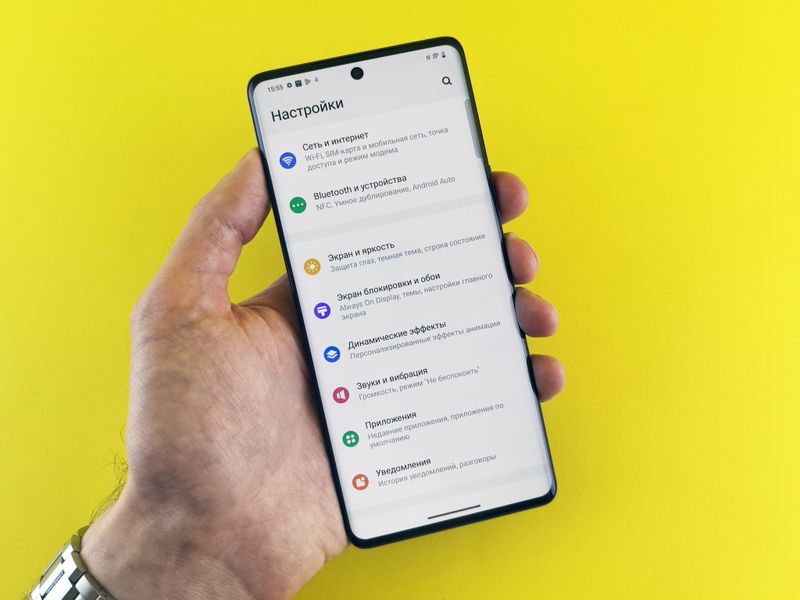
The simplest fix is often the most effective. Turn off the hotspot, wait five seconds, and turn it back on. On Android, go to Settings > Network & Internet > Hotspot & tethering and toggle the Wi-Fi hotspot switch. On iPhone, go to Settings > Personal Hotspot and toggle Allow Others to Join.
2. Restart Your Phone
A restart clears temporary memory, closes background processes, and reinitializes network services. Hold the power button, select restart, and try the hotspot again after the phone boots up. This single step fixes a surprising number of hotspot issues.
3. Enable Mobile Data
Check that mobile data is turned on. Pull down the notification shade (Android) or open Control Center (iPhone) and verify that the mobile data or cellular data icon is active. Without an active data connection, the hotspot has nothing to share.
4. Toggle Airplane Mode
Turning Airplane Mode on and off resets all wireless radios including cellular, Wi-Fi, and Bluetooth. This clears network registration issues and forces the phone to re-establish its connection with the cell tower. Enable Airplane Mode, wait ten seconds, then disable it. After the phone reconnects to cellular, try the hotspot again.
Step-by-Step Fixes for Android
Android phones offer extensive control over hotspot settings, but this also means more things can go wrong. Here are the Android-specific troubleshooting steps.
Turn Off Battery Saver
Battery Saver restricts background processes and can prevent the hotspot from working correctly.
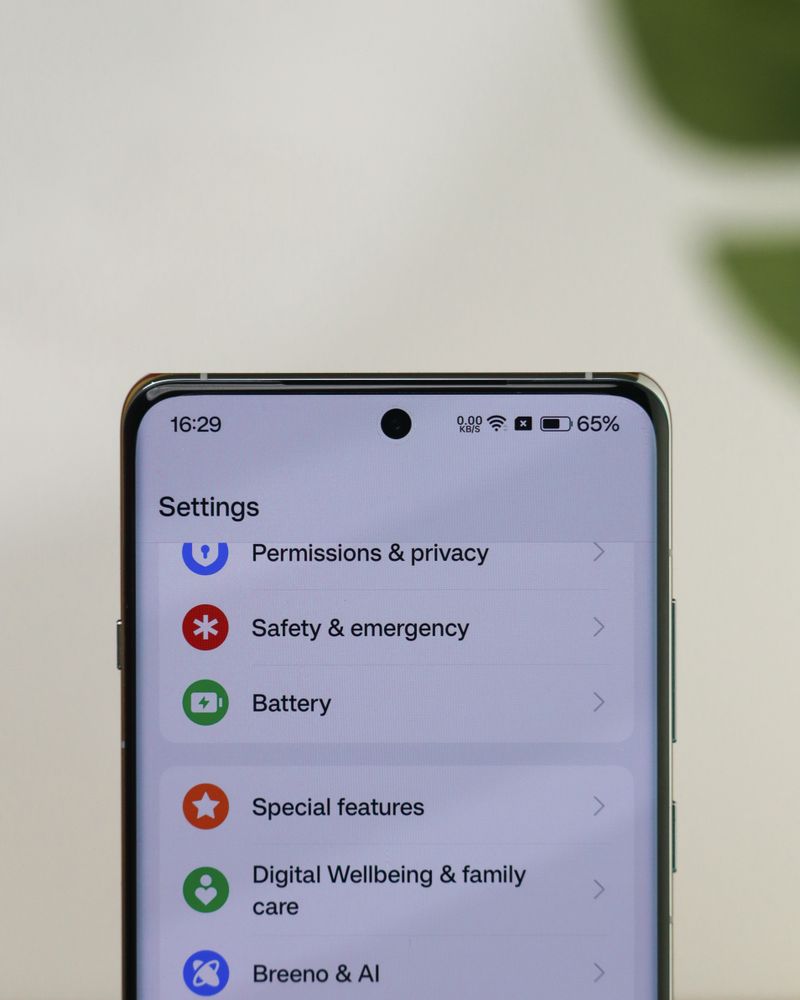
- Go to Settings > Battery.
- If Battery Saver is on, tap Turn off now.
- Enable the hotspot and test the connection.
Disable Data Saver
Data Saver limits background data usage and can interfere with the hotspot.
- Go to Settings > Network & Internet > Data Saver.
- Toggle Data Saver off.
- Try the hotspot again.
Disconnect Any Active VPN
- Go to Settings > Network & Internet > VPN (or Settings > Connections > More connection settings > VPN on Samsung devices).
- Disconnect any active VPN connection.
- If disconnecting helps, try a different VPN protocol or contact your VPN provider for hotspot-compatible settings.
Switch the Hotspot Band to 2.4 GHz
If the connecting device cannot see your hotspot, the band may be the issue.
- Go to Settings > Network & Internet > Hotspot & tethering > Wi-Fi hotspot.
- Look for AP Band, Wi-Fi Band, or Speed settings.
- Select 2.4 GHz.
- Try connecting the other device again.
The 2.4 GHz band has broader compatibility with older devices and better range, though it is slower than 5 GHz.
Check the Maximum Connections Limit
Android lets you set a maximum number of connected devices. If this limit is reached, new devices cannot connect.
- Go to Settings > Network & Internet > Hotspot & tethering > Wi-Fi hotspot.
- Look for a Max connections or Connected devices setting.
- Increase the limit if it is set too low.
Raise the Data Usage Limit
Android can automatically disable mobile data when a usage limit is reached, which also kills the hotspot.
- Go to Settings > Network & Internet > Mobile network > Data usage (or Settings > Connections > Data usage on Samsung).
- Check if a data limit is set and if you have reached it.
- Increase the limit or disable the automatic cutoff.
Reset Network Settings
If none of the above fixes work, resetting network settings clears all saved Wi-Fi networks, Bluetooth pairings, and cellular configurations and returns them to factory defaults.
- Go to Settings > System > Reset options.
- Select Reset Wi-Fi, mobile & Bluetooth.
- Confirm the reset and restart the phone.
- Set up the hotspot again with a new name and password.
Step-by-Step Fixes for iPhone
Apple's Personal Hotspot is generally simpler to set up than Android's, but it has its own set of common issues.

Enable "Allow Others to Join"
The Personal Hotspot will not accept connections unless this toggle is enabled.
- Go to Settings > Personal Hotspot.
- Toggle on Allow Others to Join.
- If the option is grayed out, contact your carrier because your plan may not include hotspot access.
Turn On Maximize Compatibility
This setting forces the hotspot to broadcast on the 2.4 GHz band, which older devices can see.
- Go to Settings > Personal Hotspot.
- Toggle on Maximize Compatibility.
- Try connecting the other device.
Check for Carrier Settings and iOS Updates
- Go to Settings > General > About. If a carrier settings update is available, you will see a prompt to install it.
- Go to Settings > General > Software Update and install any available iOS updates.
Try USB or Bluetooth Tethering
If the Wi-Fi hotspot is not working, you can still share your connection via USB or Bluetooth.
- USB: Connect the iPhone to your computer with a Lightning or USB-C cable. On the computer, select the iPhone as the network connection.
- Bluetooth: Pair the iPhone with the other device via Bluetooth, then enable the Personal Hotspot. On the connected device, select the iPhone's Bluetooth connection.
Reset Network Settings on iPhone
- Go to Settings > General > Transfer or Reset iPhone > Reset.
- Tap Reset Network Settings.
- Enter your passcode and confirm.
- The phone will restart. Set up the hotspot again.
Fixes for the Connecting Device
Sometimes the problem is not with the phone sharing the hotspot but with the device trying to connect to it.
Forget and Rejoin the Hotspot Network
The connecting device may have cached incorrect connection data. On the connecting device, go to the Wi-Fi settings, find the hotspot network, and select "Forget" or "Remove." Then reconnect by selecting the hotspot and entering the password again.
Disable MAC Randomization
Modern devices use random MAC addresses for privacy. While this is generally good, some hotspots have trouble maintaining connections with randomized addresses.
- On Windows: Go to Settings > Network & Internet > Wi-Fi, select the hotspot network, and set Random hardware addresses to Off for this network.
- On Android: Go to Settings > Wi-Fi, tap the hotspot network, and change Privacy to Use device MAC.
Update the Wi-Fi Driver on the Connecting Laptop
If a laptop cannot connect to the hotspot, an outdated Wi-Fi driver may be the cause. Open Device Manager, find Network adapters, right-click the Wi-Fi adapter, and select Update driver.
When to Contact Your Carrier
If you have tried all the fixes above and the hotspot still does not work, the problem may be on your carrier's end. Contact them if:
- The hotspot option is grayed out and cannot be toggled on
- You recently changed plans and hotspot may not be included
- You see error messages about tethering not being allowed
- The hotspot works briefly then stops, suggesting a carrier-side throttle or cap
Your carrier can verify that hotspot is enabled on your account, check whether you have reached a data cap, and troubleshoot any provisioning issues on their end.
If these steps don't resolve your issue, visit Google Android Support for additional troubleshooting resources and guides.
Frequently Asked Questions
Does using a hotspot use more battery?
Yes, running a mobile hotspot is one of the most battery-intensive activities your phone can perform. It requires the cellular radio, Wi-Fi radio, and processor to work simultaneously. Expect your battery to drain two to three times faster than normal while the hotspot is active. Plugging in your phone while using the hotspot is recommended for extended sessions.
Can I use a hotspot while connected to Wi-Fi?
On most phones, you cannot share a Wi-Fi connection through the hotspot. The hotspot specifically shares your cellular data connection. Some newer Android phones support "Wi-Fi sharing" or "Wi-Fi bridge" mode that can share a Wi-Fi connection, but this is not a standard feature.
Why does my hotspot keep turning off automatically?
Most phones automatically disable the hotspot after a period of inactivity (usually five to ten minutes) to save battery. On Android, check the hotspot settings for an auto-off or timeout setting and disable it. On iPhone, the hotspot turns off when no devices are connected and the phone is locked, which is by design.
How many devices can connect to a mobile hotspot?
Most modern smartphones support between five and ten simultaneous connections, though some flagship phones allow up to 15. The practical limit depends on your data speed: with more devices sharing the same cellular connection, each one gets a smaller share of the bandwidth. Two to three devices is the sweet spot for reasonable performance.
Why is my hotspot so slow?
Hotspot speed depends on your cellular signal strength and the speed of your mobile data plan. Weak signal, network congestion, or carrier throttling of hotspot data (common even on unlimited plans) can all reduce speeds. Some carriers deliberately reduce hotspot speeds to a fraction of the phone's normal data speed. Check your plan details for any hotspot speed limits.