Microphone Not Detected? Here's How to Fix It

Microphone Not Detected? Here's How to Fix It
Whether you are trying to join a video call, record audio, or use voice commands, a microphone that is not detected by your computer stops you in your tracks. When microphone not detected becomes an issue, the cause is usually something you can fix yourself. When your system does not recognize the microphone, no application can access it. The good news is that most detection issues are caused by permission settings, disabled devices, or driver problems that you can fix without any hardware replacement.
Basic Checks First
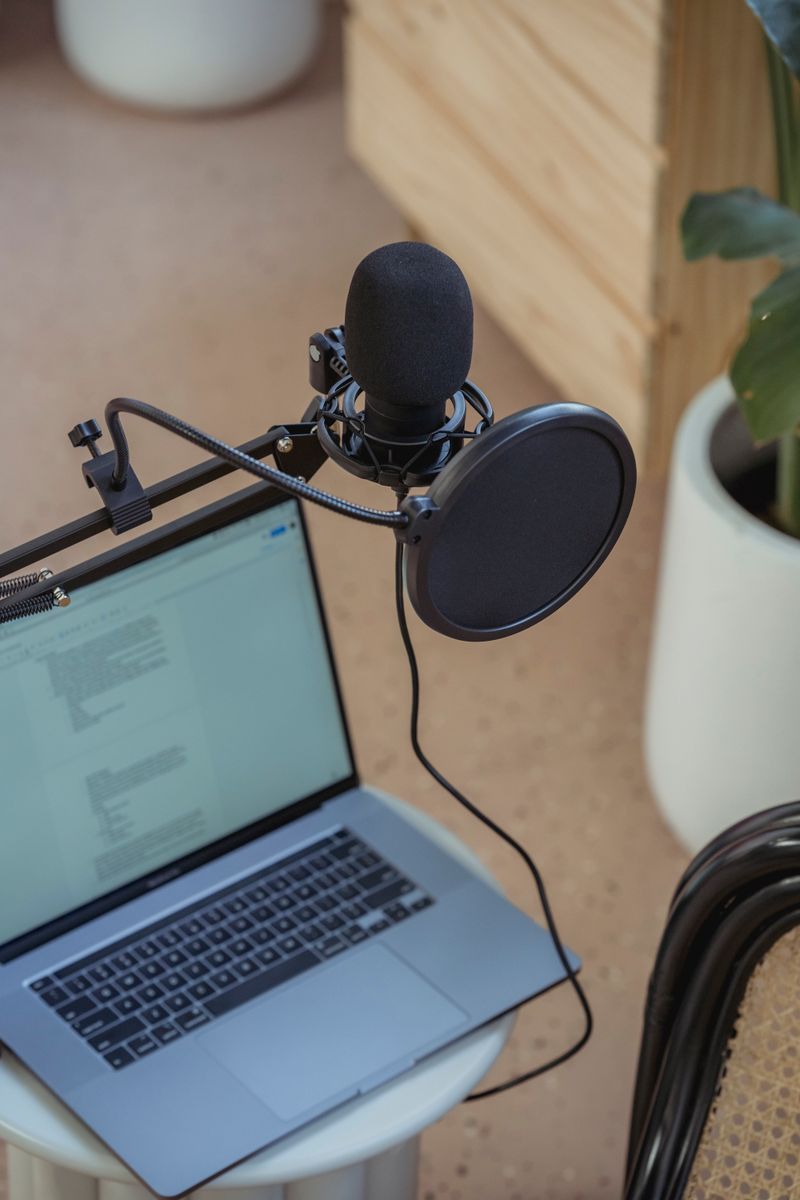
- Check the physical connection. If using a USB microphone, make sure the USB plug is firmly seated. Try a different USB port. If using a 3.5mm mic, ensure it is plugged into the microphone jack (usually pink) and not the headphone jack (usually green). Some laptops use a single combo jack for both, which requires a TRRS connector or a splitter adapter.
- Check the mute switch. Many microphones and headsets have a physical mute button or switch. Make sure it is not engaged.
- Try the mic on another device. Plug the microphone into a different computer or phone. If it is not detected there either, the microphone itself may be defective.
- Restart your computer. A restart clears temporary audio service glitches and forces the system to re-detect all connected audio devices.

Windows Microphone Settings
Enable the Microphone in Sound Settings
- Right-click the speaker icon in the system tray and select Sound settings.
- Scroll down to Input and check if your microphone appears in the dropdown. If it does, select it.
- If your microphone is not listed, click All sound devices under Advanced and look for it in the Input devices section. Click on it and make sure "Allow apps and Windows to use this device" is enabled.
Check Microphone Permissions
- Go to Settings > Privacy & security > Microphone.
- Make sure Microphone access is turned on at the top.
- Scroll down and verify that the specific app you are trying to use (Teams, Zoom, Discord, etc.) has microphone access enabled.
- Also turn on Let desktop apps access your microphone at the bottom of the list.
Check the Recording Devices Panel
- Right-click the speaker icon and select Sound settings, then click More sound settings at the bottom.
- Go to the Recording tab.
- Right-click in the empty area and check Show Disabled Devices and Show Disconnected Devices.
- If your microphone appears as disabled, right-click it and select Enable.
- Right-click the enabled microphone and select Set as Default Device.
Driver Troubleshooting
Update Audio Drivers
- Open Device Manager.
- Expand Audio inputs and outputs. Look for your microphone here.
- Also expand Sound, video and game controllers and find your audio driver (Realtek, Intel, or your sound card brand).
- Right-click each and select Update driver > Search automatically.
Reinstall Audio Drivers
If updating does not help, uninstall the audio driver completely. In Device Manager, right-click the audio driver under Sound, video and game controllers and select Uninstall device. Check "Delete the driver software" if the option appears. Restart your computer, and Windows will reinstall a fresh driver. For better compatibility, download the latest audio driver from your laptop or motherboard manufacturer's website rather than relying on the Windows generic driver.
Having other Windows hardware issues? Check our guide on touchpad not working.
Run the Audio Troubleshooter
Go to Settings > System > Troubleshoot > Other troubleshooters and run Recording Audio. This automated tool checks for common microphone issues and can fix them without manual intervention. According to Microsoft's microphone troubleshooting guide, the audio troubleshooter resolves the majority of detection issues automatically.
Having other Windows hardware issues? Check our guide on usb device not recognized.
For related peripheral issues, check our hdmi no signal troubleshooting guide.
For related peripheral issues, check our webcam not working troubleshooting guide.
Having other Windows hardware issues? Check our guide on keyboard keys not working.
For related peripheral issues, check our backspace not working troubleshooting guide.
Mac Microphone Fixes
- Open System Settings > Sound > Input.
- Select your microphone from the list. If it does not appear, the Mac is not detecting the hardware.
- Check System Settings > Privacy & Security > Microphone and make sure the apps you want to use have microphone access toggled on.
- Reset the Core Audio service by opening Terminal and running:
sudo killall coreaudiod. This restarts the audio daemon and forces the system to re-detect all audio devices.
If your microphone is detected but still not working in calls or recordings, our guide on Windows microphone not working covers in-app audio configuration and testing.

Frequently Asked Questions About Microphone Not Detected
Why does my microphone work in some apps but not others?
Each application has its own audio input setting independent of the system default. Open the app's settings and verify the correct microphone is selected as the input device. Also check Windows Privacy settings to make sure that specific app has microphone permission.
Can a USB hub prevent my microphone from being detected?
Yes. Unpowered USB hubs may not provide enough power for microphones, especially condenser mics that require USB bus power. Try plugging the microphone directly into your computer's USB port instead of through a hub. If you must use a hub, use a powered one.
My Bluetooth headset microphone is not detected. What should I do?
Bluetooth audio devices often register as two separate devices: one for stereo audio playback and one for hands-free communication (which includes the microphone). In your sound settings, select the "hands-free" or "headset" profile rather than the "stereo" profile to access the microphone. The sound quality will be lower in this mode, but the microphone will be available.
Does a microphone need drivers?
Most USB microphones are class-compliant, meaning they use standard USB audio drivers built into Windows and macOS. No separate driver installation is needed. However, some professional audio interfaces and XLR-to-USB adapters do require manufacturer-specific drivers. Check the microphone manufacturer's website if yours came with a driver disc or download link.