AirPods Not Connecting? How to Fix It on Any Device

When your AirPods not connecting becomes a recurring problem, the fix usually involves resetting the Bluetooth pairing rather than replacing the earbuds.
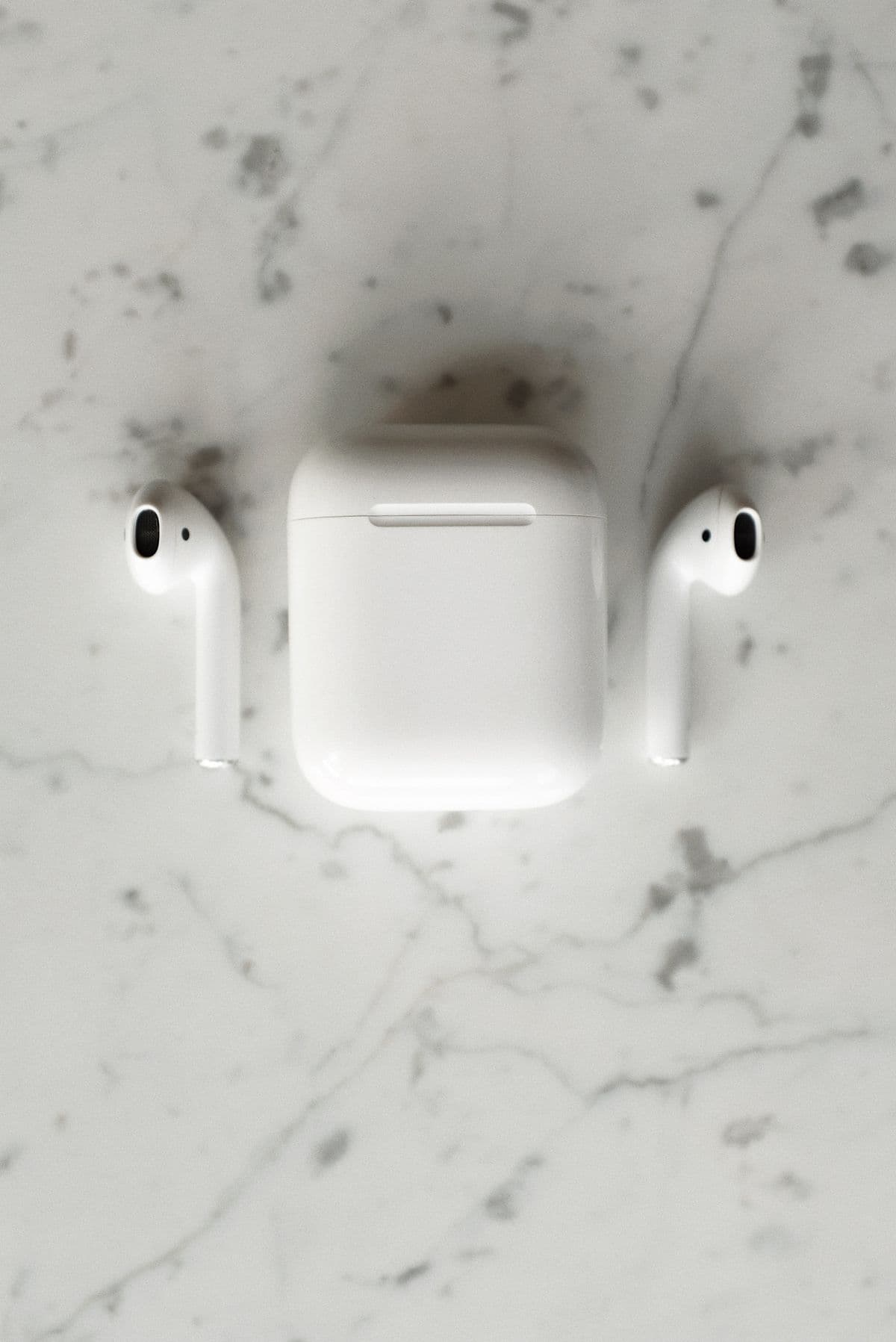
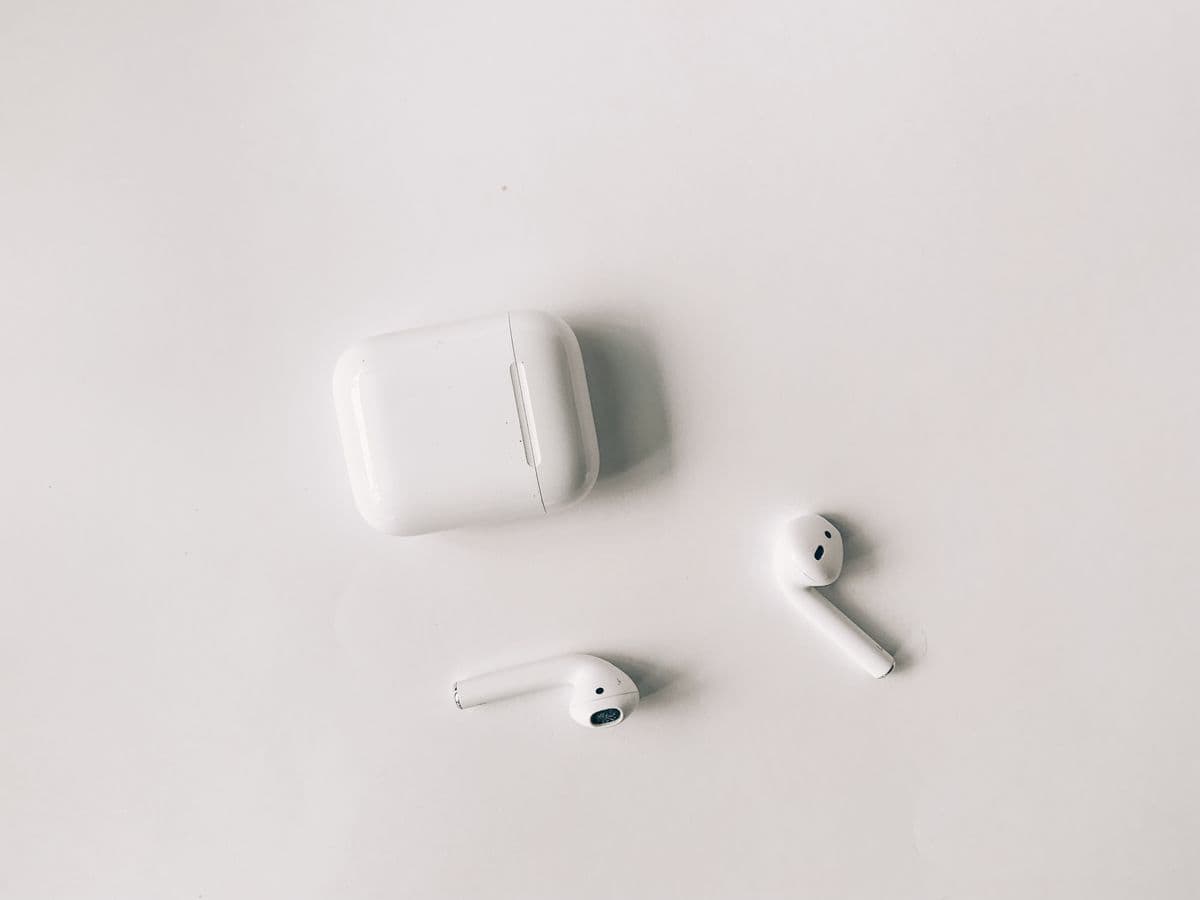
AirPods that refuse to connect to your iPhone, iPad, or Mac after opening the case are one of the most reported AirPods problems. You open the lid expecting the familiar connection chime, but nothing happens. The AirPods do not appear in the Bluetooth list, the pairing animation does not show up, or they briefly connect and immediately disconnect. The root cause is almost always a Bluetooth pairing conflict, a dead case battery, or a firmware state that needs to be cleared with a reset.

Photo by Karolina Kaboompics on Pexels
Common Reasons AirPods Fail to Connect
AirPods use a custom Apple-designed wireless chip (W1, H1, or H2 depending on the generation) that is supposed to make pairing seamless across Apple devices. When this system breaks down, the failure can look like a hardware problem even though it is almost always a software or configuration issue.
Experiencing other AirPods issues? Our right AirPod not working guide may help.
Experiencing other AirPods issues? Our airpods case not charging guide may help.
Experiencing other AirPods issues? Our AirPods not charging guide may help.
Bluetooth is turned off or in an inconsistent state. Bluetooth can be partially disabled in ways that are not immediately visible. Using the Control Center toggle does not fully disable Bluetooth on iOS. It disconnects current devices but leaves Bluetooth technically active. Certain iOS bugs can cause the Control Center and Settings toggles to show different states, leading to a situation where Bluetooth appears on but is not scanning for devices.
The AirPods are already connected to a different device. AirPods pair with all devices signed into the same Apple ID and can automatically switch between them. This automatic switching sometimes causes the AirPods to connect to your iPad or Mac instead of your iPhone. When this happens, the AirPods appear unavailable on your iPhone because they are actively streaming audio from another device, even if that device is in another room with its screen off.
The AirPods case battery is dead. The case manages the initial Bluetooth handshake between the AirPods and your device. If the case has no charge, it cannot power the AirPods or broadcast the pairing signal. The AirPods will not connect even if they individually still have some battery remaining, because the connection process begins with the case.
The pairing profile is corrupted. Each time you pair AirPods, the device stores a Bluetooth profile with authentication keys and connection preferences. This profile can become corrupted after an iOS update, after AirPods firmware updates, or after connecting to too many devices. A corrupted profile causes the device to think it is connecting when it is actually failing the authentication handshake silently.
The AirPods firmware is stuck in a bad state. The AirPods and case have their own firmware that updates automatically. If an update was interrupted (because the case ran out of battery mid-update, for example), the firmware can end up in a partially installed state that prevents normal operation. A full reset is the only way to recover from this.
Turn Bluetooth Off and Back On in Settings
Do not use the Control Center toggle for this step. Go to the actual Bluetooth settings to ensure a complete restart of the Bluetooth system.
- Open Settings > Bluetooth on your iPhone or iPad.
- Turn the Bluetooth toggle off. Wait 10 seconds.
- Turn the Bluetooth toggle back on.
- Close the AirPods case lid, wait 5 seconds, then open it again near your device.
- Watch for the pairing animation on your device screen or check the Bluetooth device list for your AirPods name.
If you see your AirPods in the Bluetooth list but they show "Not Connected," tap on their name to manually initiate the connection. If they do not appear at all, proceed to the next step.
On a Mac, click the Bluetooth icon in the menu bar (or go to System Settings > Bluetooth), turn Bluetooth off, wait 10 seconds, and turn it back on. Then open the AirPods case near the Mac.

Photo by Sora Shimazaki on Pexels
Check if AirPods Are Connected to Another Device
AirPods that are linked to your Apple ID can automatically connect to any Apple device signed into that account. If your AirPods connected to your iPad, Mac, or Apple TV instead of your iPhone, they will not be available on your iPhone until you disconnect them from the other device or override the connection.
A common reason for AirPods not connecting is outdated firmware on either the earbuds or the host device.
- Check your iPad: Open Settings > Bluetooth and look for your AirPods. If they show "Connected," tap the (i) icon and select Disconnect.
- Check your Mac: Click the Bluetooth icon in the menu bar. If your AirPods are listed as connected, click on them and select Disconnect.
- Check Apple TV: Go to Settings > Remotes and Devices > Bluetooth and disconnect if connected.
To prevent this from happening in the future, you can turn off automatic switching for devices where you rarely use AirPods. On each device, go to Bluetooth settings, tap the (i) next to your AirPods, and change "Connect to This [Device]" from "Automatically" to "When Last Connected to This [Device]." This keeps the AirPods connected to the device you manually chose rather than switching on their own.
Forget the AirPods and Re-Pair from Scratch
If toggling Bluetooth and checking other devices did not work, the Bluetooth pairing profile may be corrupted. Forgetting the device deletes the stored profile and forces a fresh pairing.
Experiencing other AirPods issues? Our airpods microphone not working guide may help.
- Go to Settings > Bluetooth on your iPhone.
- Find your AirPods in the device list. Tap the (i) icon next to them.
- Tap Forget This Device. Confirm the action.
- Close the AirPods case lid and wait 15 seconds.
- Open the lid near your iPhone. The setup animation should appear on your iPhone screen within a few seconds.
- Follow the on-screen prompts to complete pairing.
If your AirPods were also paired with other Apple devices through iCloud, forgetting them on one device should remove them from all devices signed into the same Apple ID. After re-pairing with your iPhone, the AirPods will automatically become available on your other Apple devices again.
If you experience AirPods not connecting after an iOS update, forgetting and re-pairing the device resolves the issue in most cases.
Reset Your AirPods
A full reset clears the AirPods internal firmware state and all stored pairing data. This is the most reliable fix for persistent connection failures and is required if the "Forget This Device" step did not trigger the pairing animation.
Experiencing other AirPods issues? Our left airpod not working guide may help.
- Place both AirPods in the charging case. Close the lid and wait 30 seconds.
- Open the lid. Leave both AirPods inside.
- Press and hold the setup button on the back of the case for 15 seconds. The status light will flash amber first, then flash white. The white flash indicates the AirPods have been fully reset.
- With the lid still open, hold the case near your iPhone. The pairing animation should appear within a few seconds.
- Tap "Connect" and follow the setup prompts. If you use Siri, you will be asked to set it up again for the AirPods.
After resetting, your AirPods will re-download settings from iCloud, including customized controls and ear detection preferences. These sync automatically after pairing is complete.
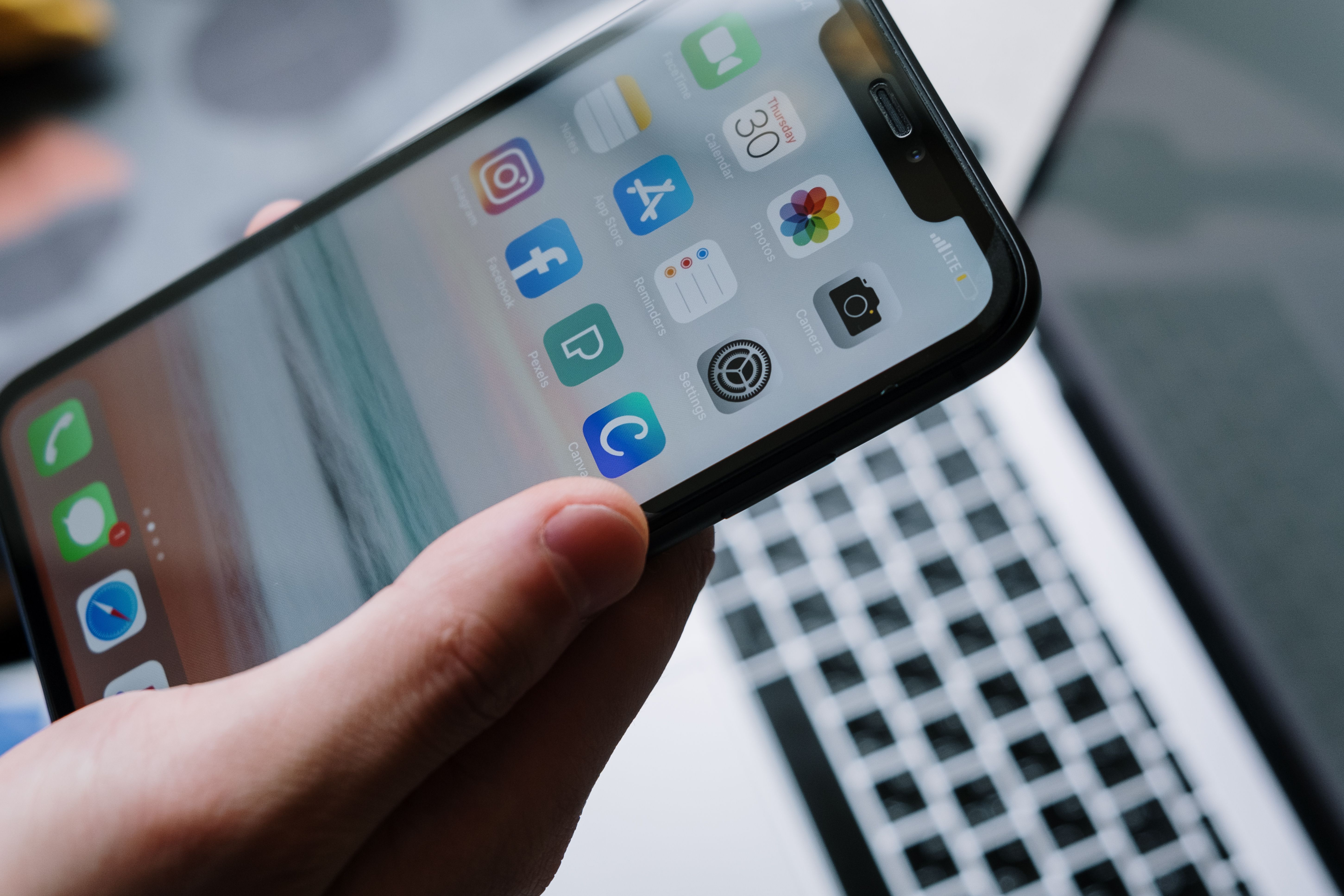
Photo by Monstera Production on Pexels
Update Your Device Software
AirPods connection issues sometimes appear after an iOS, iPadOS, or macOS update that introduces a Bluetooth compatibility bug. Apple typically fixes these in subsequent updates, so running the latest software version is important.
- On iPhone or iPad: Go to Settings > General > Software Update. Install any available update.
- On Mac: Go to System Settings > General > Software Update. Install any available update.
AirPods firmware updates are installed automatically when the AirPods are in their case, charging, and near a connected iPhone. You cannot manually trigger a firmware update, but you can verify the current version in Settings > Bluetooth > tap the (i) next to your AirPods > scroll to Firmware Version.
Reset Network Settings on Your iPhone
If your AirPods still will not connect after a reset and software update, the issue may be with your iPhone's Bluetooth system rather than the AirPods themselves. A network settings reset clears all Bluetooth pairings, Wi-Fi passwords, VPN configurations, and cellular settings, then rebuilds them from scratch.
- Go to Settings > General > Transfer or Reset iPhone > Reset > Reset Network Settings.
- Enter your passcode when prompted.
- The iPhone will restart. After the restart, go to Settings > Bluetooth and confirm it is turned on.
- Open the AirPods case near the iPhone and attempt to pair.
Note that this reset removes all saved Wi-Fi passwords and all other Bluetooth pairings, so you will need to re-enter Wi-Fi credentials and re-pair other Bluetooth accessories afterward.
Test the AirPods with Another Device
To determine whether the problem is with the AirPods or with your specific device, try connecting the AirPods to a completely different device. Use a family member's iPhone, an iPad, or a Mac that the AirPods have never been paired with before.
Having sound issues too? Check our Bluetooth connected but no sound guide.
- Reset the AirPods (hold the setup button for 15 seconds until the white flash).
- Open the case near the other device.
- If the pairing animation appears and the connection works normally, the problem is with your original device, not the AirPods.
- If the AirPods still fail to connect to any device, even after a reset, there may be a hardware issue with the AirPods or case. Contact Apple Support for diagnosis.
You can also test with a non-Apple device. AirPods work with any Bluetooth device, though without the automatic pairing animation. On an Android phone or Windows PC, go to Bluetooth settings, put the AirPods in pairing mode (open case, hold setup button until white flash), and look for them in available devices.

Photo by Andrea Piacquadio on Pexels
For warranty service or hardware replacement, visit Apple AirPods Support.
Frequently Asked Questions About AirPods Not Connecting
Why do my AirPods connect to my iPad instead of my iPhone?
AirPods with an H1 or H2 chip support automatic switching between Apple devices signed into the same Apple ID. If your iPad is playing audio or was the last device to use the AirPods, they may connect to it automatically instead of your iPhone. To prevent this, go to Bluetooth settings on the iPad, tap the (i) next to your AirPods, and change "Connect to This iPad" to "When Last Connected to This iPad." This stops the iPad from stealing the connection.
Why do my AirPods keep disconnecting after a few seconds?
Frequent disconnections are usually caused by low battery in either the AirPods or the case, a corrupted Bluetooth profile, or interference from other Bluetooth devices. Charge the case and AirPods fully, then forget the AirPods in Bluetooth settings and re-pair them. If disconnections continue, try moving away from areas with heavy wireless interference such as kitchens with multiple smart appliances or offices with many Bluetooth devices.
Can I pair AirPods with an Android phone or Windows PC?
Yes. AirPods work with any Bluetooth-compatible device, not just Apple products. To pair with Android or Windows, open the AirPods case, press and hold the setup button on the back until the status light flashes white, then select the AirPods from the Bluetooth device list on your phone or PC. You will lose Apple-specific features like automatic ear detection, Siri integration, and seamless device switching, but basic audio playback and microphone functions work normally.
What does the status light color mean during pairing?
Amber flashing means the AirPods are resetting or updating firmware. White flashing means the AirPods are in pairing mode and ready to connect. Steady amber means the case is charging. Steady green means the case is fully charged. No light means the case has no battery or the AirPods are not in the case. During normal pairing, you want to see the white flash after holding the setup button, which confirms the AirPods are broadcasting their pairing signal.
How do I fix AirPods that connect but show no audio output?
This is a different issue from not connecting at all. If AirPods appear connected in Bluetooth settings but audio plays through the iPhone speaker instead, check the audio output selector. During media playback, open Control Center, long-press the audio card, and tap the AirPlay icon in the top-right corner. Select your AirPods from the output list. If they are not listed there despite showing as connected in Bluetooth, forget and re-pair them.